Your team's plan has no member seats
is on a plan without team members, so your access is paused. Nothing was deleted. Ask the team owner to move the team to Business and your access comes back at once.
Signed in as
How Batch import works
Upload a CSV with one row per pass, design a single template, and every row becomes a pass with its own share link. No code at any point.
Export your list as a CSV
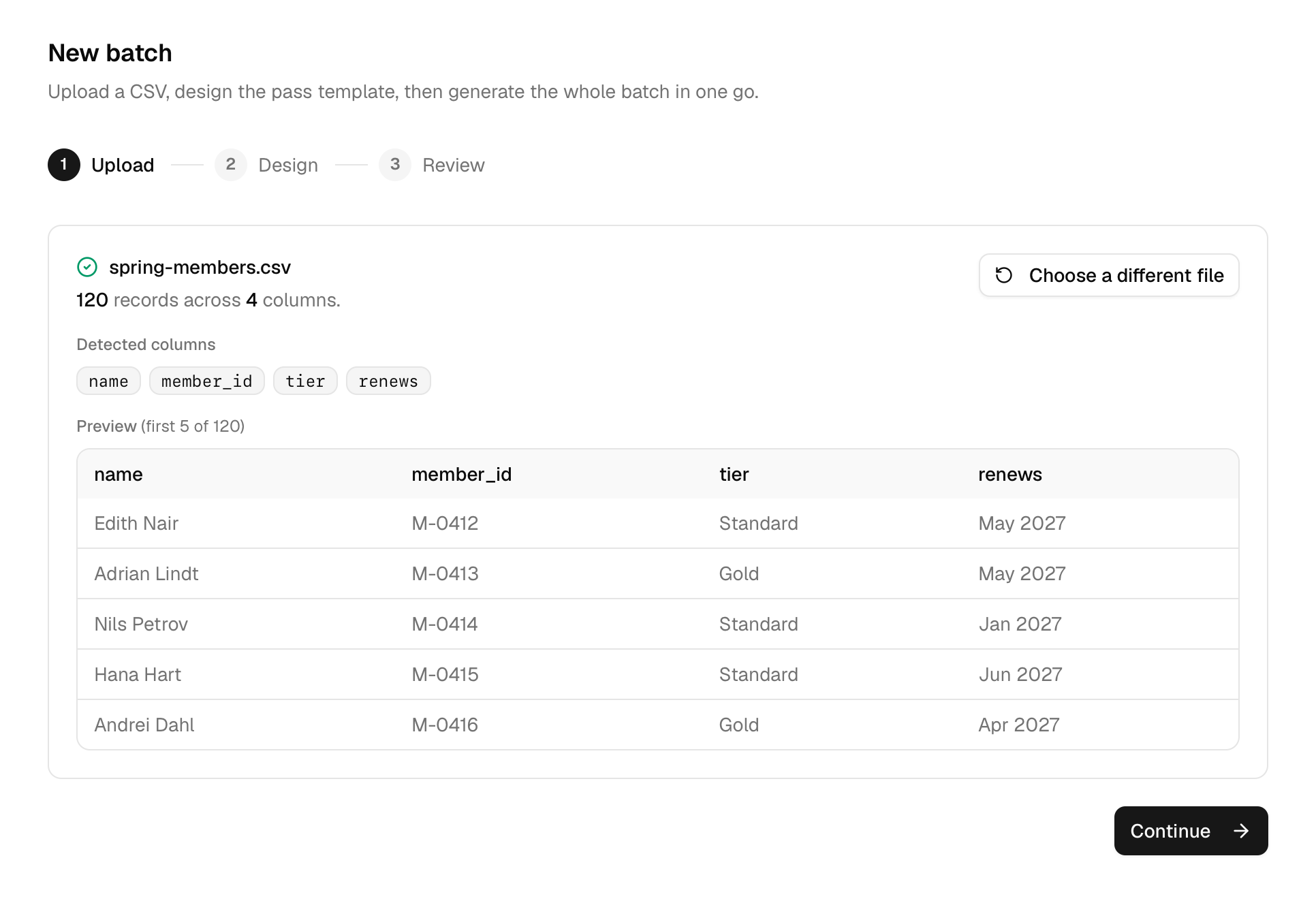
Any CRM or spreadsheet can produce the file. It needs a header row naming each column and one row per pass. The column names are yours; there is no required set, because you decide in step 3 which columns end up on the pass.
Upload it
Drop the file into the wizard. It parses in your browser and shows the columns it detected and a preview of the first rows, so you can confirm the file reads correctly before anything is created. Your plan sets the records-per-batch limit, shown under the drop zone.
Design one template
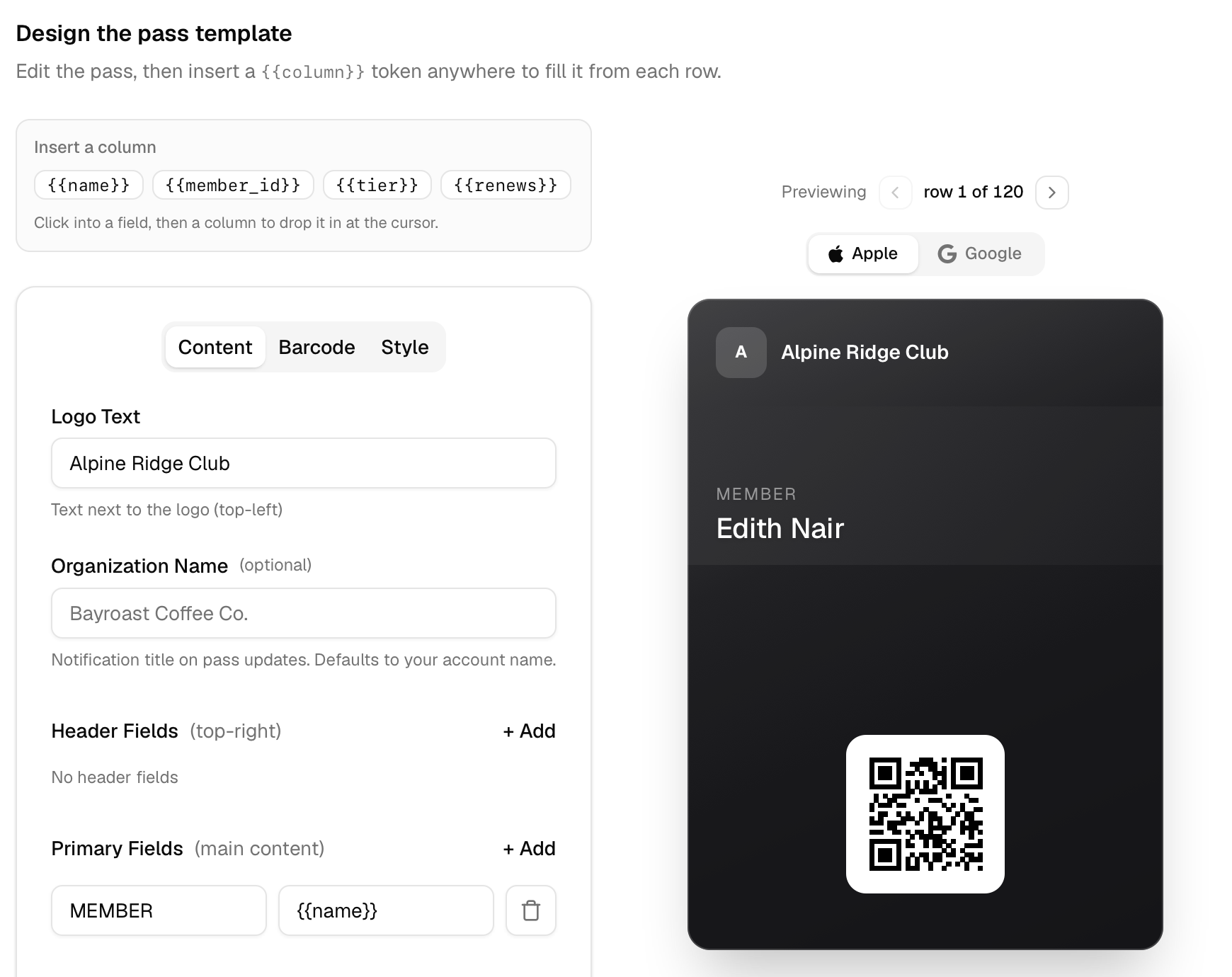
The pass editor opens with your columns as insertable tokens. Click into any field and drop a column in; the token is replaced per row when the batch runs. The live preview substitutes real rows from your file, so what you see is a real member's pass, and you can step through rows to spot-check.
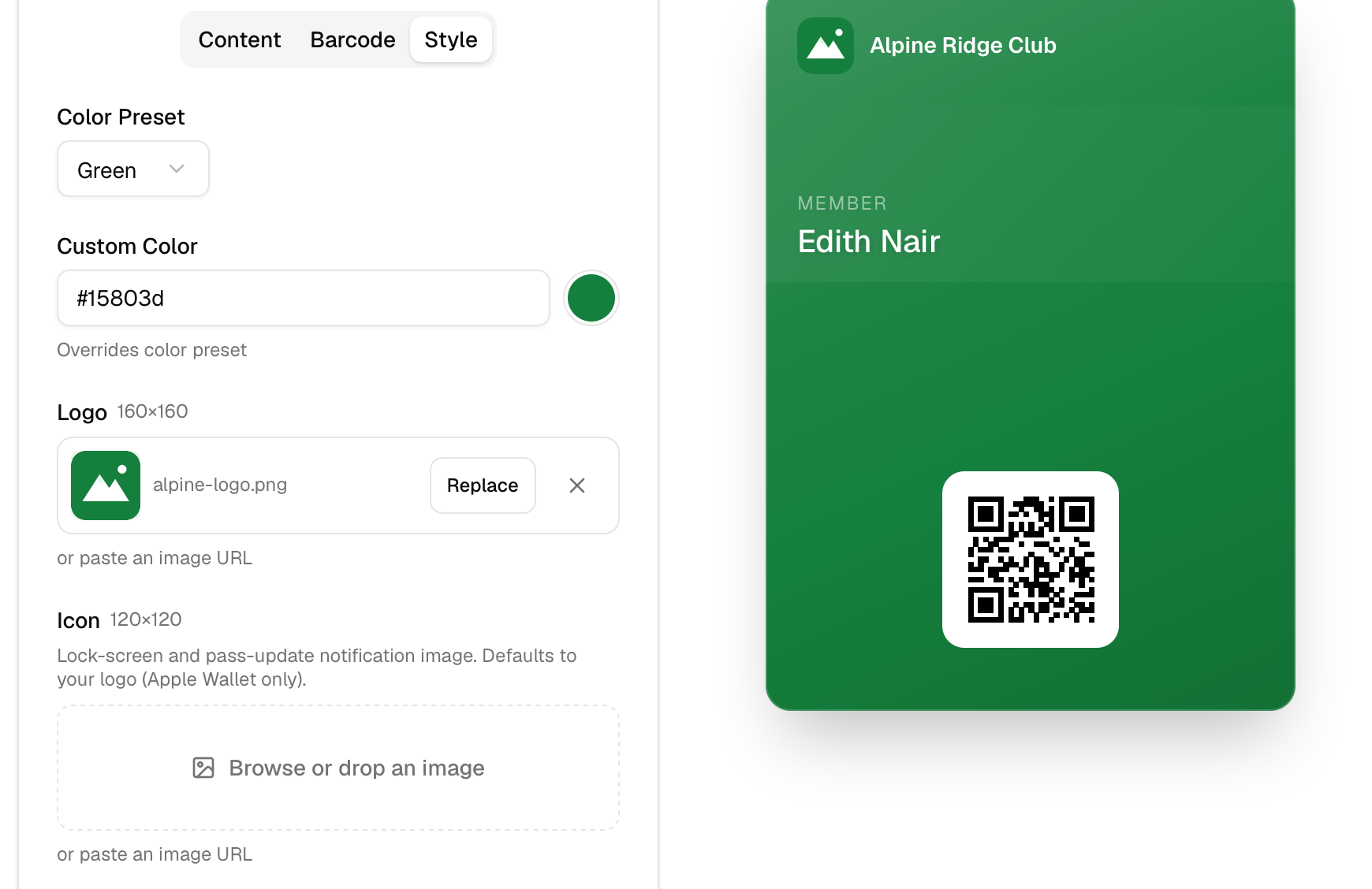
Branding lives on the template too. The logo, icon, strip and thumbnail images, and the card color you set on the Style tab apply to every pass in the batch. Images and custom colors are Pro features.
Generate and download the results
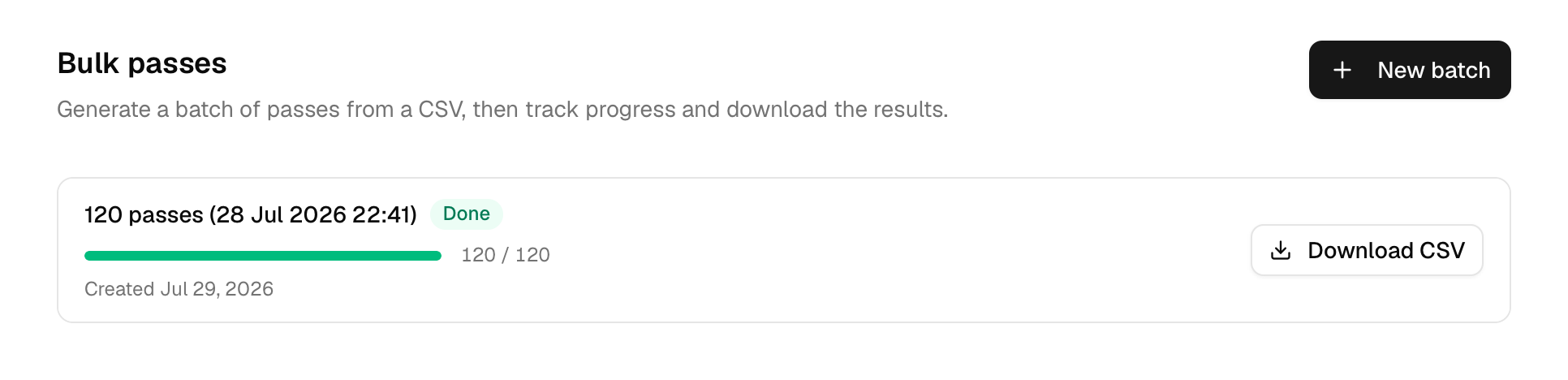
Review, then generate. The batch runs in the background, so you can leave the page; the list shows live progress. When it finishes, Download CSV gives you a file with the row number, status, serial number, and share link for every row; the row number matches your source file's order, so you can join the links back for sending. Send each person their link and the pass installs in Apple or Google Wallet. A row that fails is recorded in that CSV without stopping the rest of the batch.
Manage the passes afterwards
Every pass from the batch is a normal pass. It shows up in Pass Manager, where you can edit it, push an update to installed devices, or revoke it, one pass at a time.