How to Build a Cafe Loyalty App with Lovable
Build a simple cafe loyalty app in Lovable with customer enrollment, a staff scanner, rewards, and Apple and Google Wallet passes.
Simple loyalty programs can work for almost any business where customers have a reason to return. A cafe can reward coffee purchases, a bakery can count loaves, a salon or barber can count appointments, a car wash can count paid washes, and a gym, class studio, pet groomer, tasting room, or independent shop can reward the repeat action that matters most to its customers. The details change from one business to the next, but the basic loop stays familiar: visit, make progress, and come back for a reward.
Building the program yourself lets that loop follow the way your business actually works. You can choose the earning rule, customer details, reward, screens, and branding, then adjust them as you learn what brings people back. Your first version can stay small and useful without being limited by the fixed workflow of generic loyalty software.
For this example, we will use Bayroast Coffee, a new cafe with a sizable audience that wants to encourage more repeat business. Its program will give customers one stamp for each full-price coffee and a free standard coffee after eight stamps.
Lovable makes this kind of personalized software approachable even if you are not a developer. You describe the customer journey and staff workflow in plain language, and Lovable creates the pages, database, and operating tools. WalletWallet adds a live loyalty card for Apple Wallet and Google Wallet, so customers can carry their progress on the phone they already use.
In this tutorial, we will move from a blank Lovable project to a working Bayroast loyalty loop. Customers will join from a web page and show a QR code at the counter, while staff scan the card, add stamps, and redeem rewards from a phone-friendly dashboard.
By the end of this tutorial, you will have:
- a public customer enrollment page;
- a searchable customer list and activity history;
- a staff dashboard with a QR scanner and manual code entry;
- an eight-stamp reward that customers earn and staff redeem; and
- one live pass that updates in Apple Wallet and Google Wallet.
Start with the behavior you want
A loyalty program should make the next visit feel worth remembering. For Bayroast, that means the program needs to do four things well:
- let a customer join in less than a minute;
- make their progress easy to see;
- give staff a quick, reliable way to add stamps and redeem rewards; and
- create useful moments to bring the cafe back to mind between visits.
Those goals shape the app. A short enrollment form keeps joining easy. A QR code gives staff one identifier to scan or type. An activity history makes each stamp traceable. The wallet pass keeps the reward visible, while wallet notifications turn milestones such as “one visit to go” into a timely reminder on the customer’s phone.
Why build your own loyalty app?
An off-the-shelf loyalty product is useful when its rules already match the way your business works. Building a small app becomes more interesting when you want to choose the earning rule, reward, customer details, staff workflow, and brand experience for yourself.
That flexibility matters because repeat business looks different everywhere. A cafe may count coffees, a salon may count appointments, and a class studio may reward attendance. With Lovable, the software can follow that real-world action and change as you learn what customers respond to. You still begin with the same bare-bones loop—join, identify the customer, record progress, and redeem—while keeping room for the details that make the program yours.
You need a Lovable account and a WalletWallet account with an API key. A phone is helpful when you reach the scanner and wallet steps.
1. Create the app in Lovable
Create a blank Lovable project and paste the prompt below. It gives Lovable the business rule and the screens it needs without asking it to invent a large, complicated loyalty platform.
Build a responsive loyalty web app called Bayroast Rewards for a
single-location cafe.

The program is simple: one full-price coffee earns one stamp, an order can earn
up to two stamps, and eight stamps unlock one free standard coffee. When a
reward is ready, staff redeem it and reset the same card to zero.

Use Lovable Cloud for the database, staff authentication, and server functions.

Create these pages:

1. A short home page with Bayroast Rewards, a Join rewards button, and a Staff
   sign in button.
2. A public /join page that asks for name and email, with an optional phone
   number. After joining, show the customer's wallet install link and a Copy
   link button.
3. A private /dashboard for staff with active members, stamps added today,
   rewards ready, recent activity, and wallet sync failures.
4. A private /members page with search by name, email, phone, or member code.
5. A member page with the current stamp count, contact details, event history,
   wallet link, Add stamp, Correct stamps, Redeem reward, Send wallet message,
   Retry wallet sync, and Revoke card actions.
6. A private /scan page that reads the QR code with the phone camera. A scan
   should open the matching customer and ask staff to confirm the action. Add a
   manual member-code field when the camera is unavailable.

Give every customer a random code beginning with BR-. Store customers, staff,
the current stamp count, wallet pass details, and an event history in the
database. Prevent a repeated tap or network retry from adding the same stamp
twice. A revoked card cannot earn or redeem.

Prepare the app to use a server-side WALLETWALLET_API_KEY secret. Never put the
key in browser code. Enrollment will create a wallet pass, and stamp,
correction, redemption, and message actions will update that same pass.

Add five clearly marked fictional customers so the dashboard and search pages
are useful on the first preview.

Use Bayroast green #1f5e2c, warm cream #f7f2e8, charcoal text, subtle borders,
and generous spacing. Keep the staff actions large enough to use quickly on a
phone. Avoid decorative charts, gradients, and hover movement.
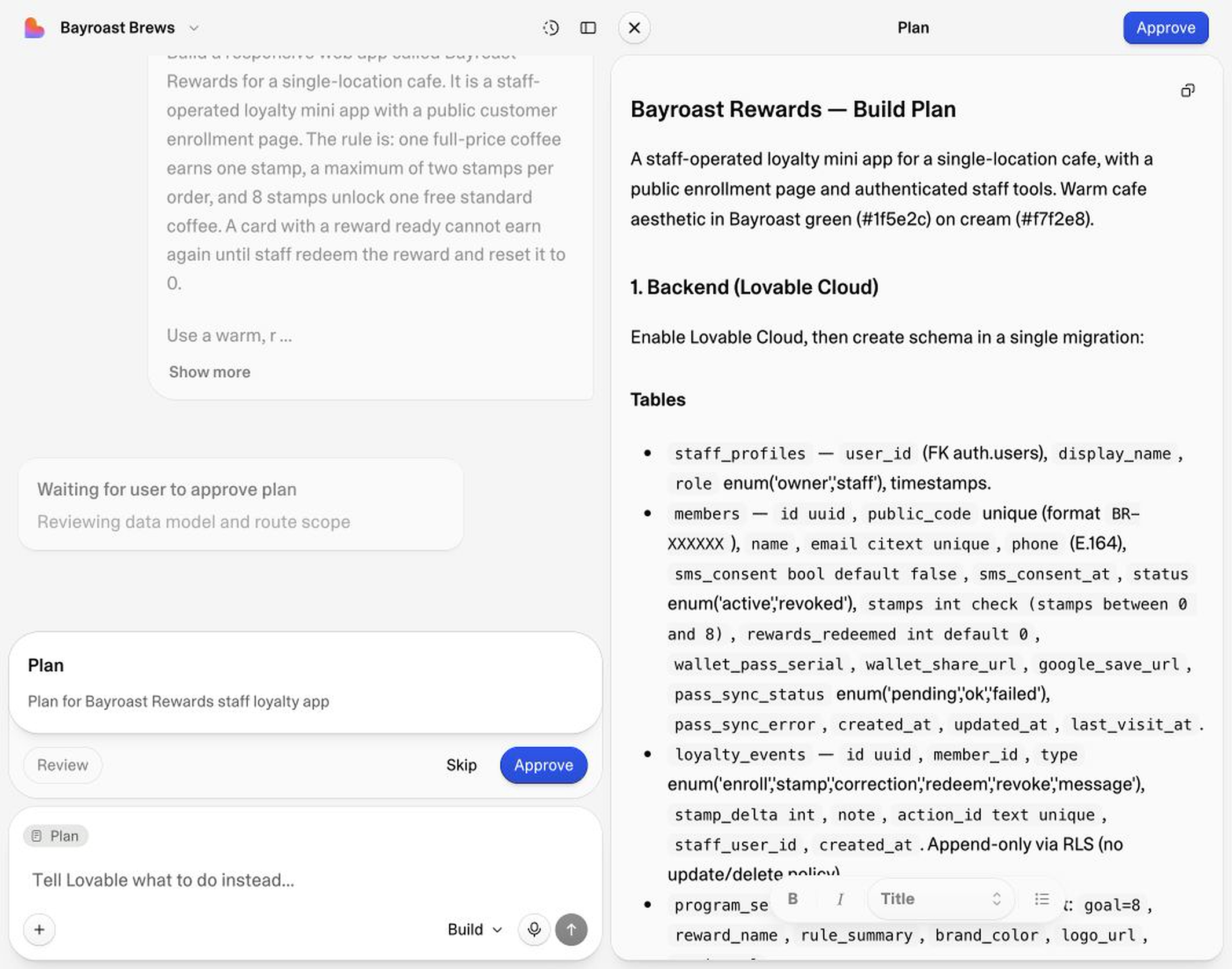
Lovable may turn the prompt into a plan before it begins building. Check that the plan includes the join page, staff sign-in, members, scanner, database, and wallet pass fields, then approve it.
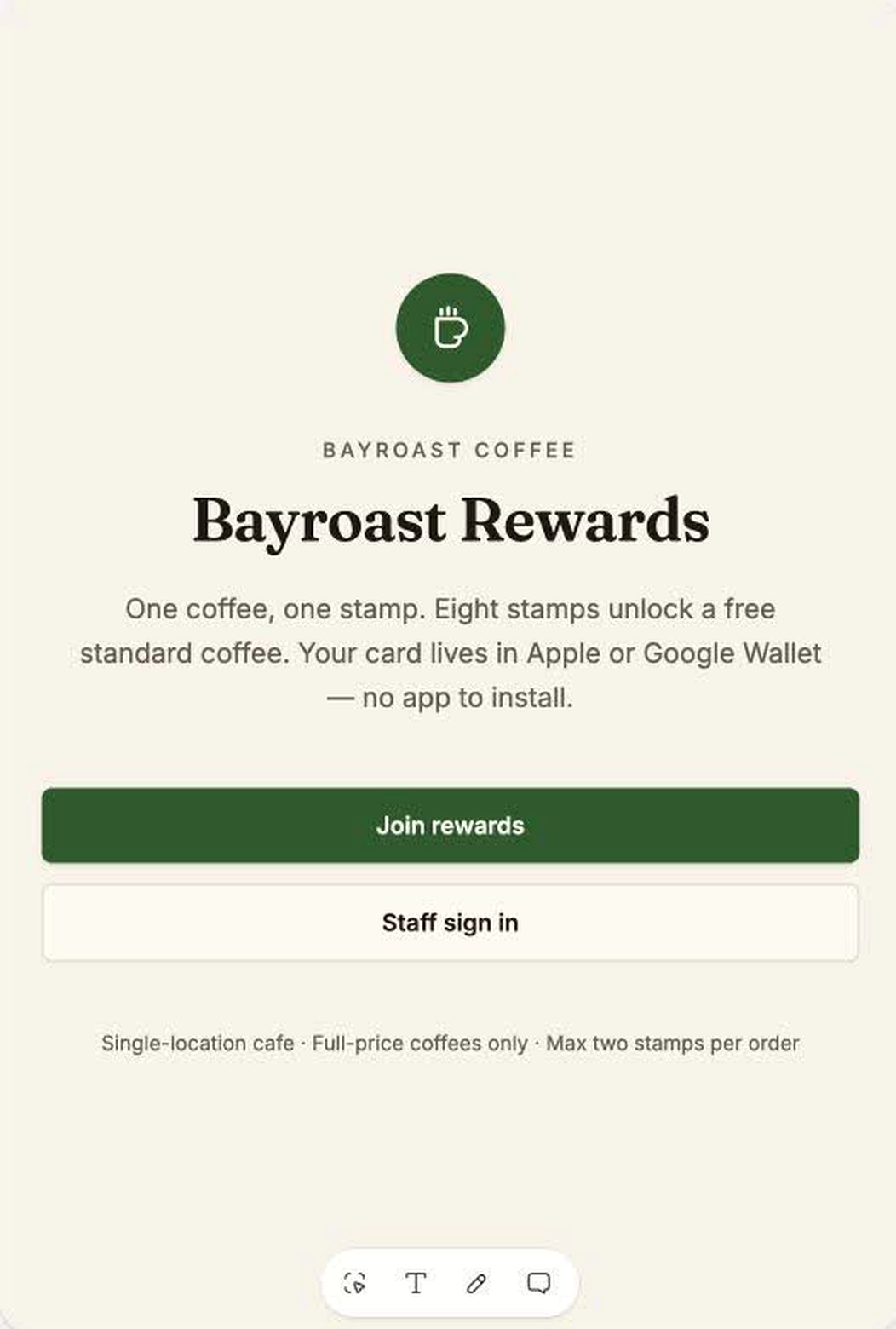
Let Lovable enable Cloud and build the first version. The result should have a short public introduction with separate paths for customers and staff.
2. Add your WalletWallet API key
Lovable will ask for WALLETWALLET_API_KEY when it reaches the wallet
integration. Copy your key from WalletWallet and paste it into Lovable’s masked
Add secret field. The value will be available to the server functions
without appearing in the customer-facing app.
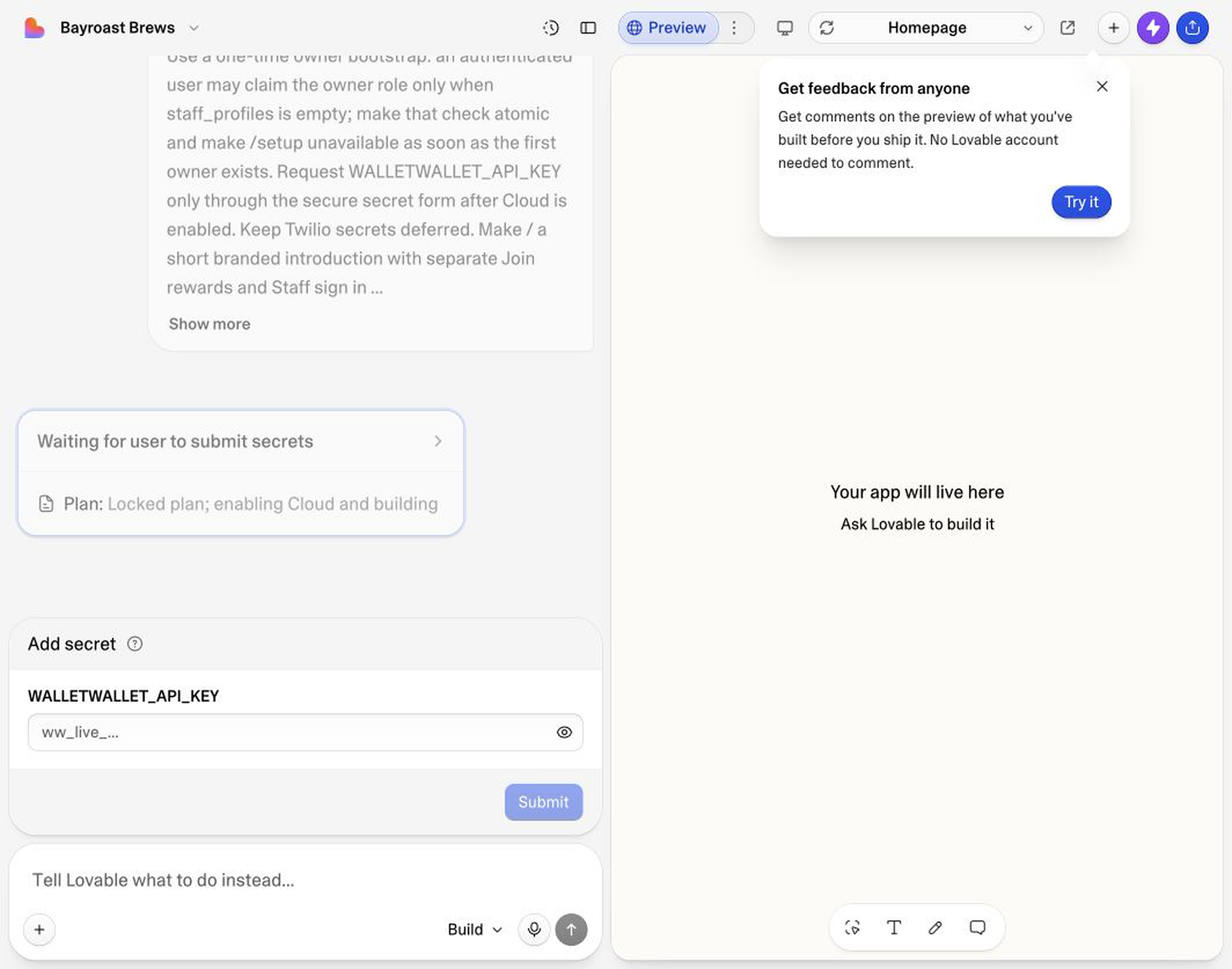
The app will use the key to create a pass for each new member and update the same pass whenever their progress changes.
3. Design the loyalty card
Open the WalletWallet Pass Designer in another tab. It lets you design the pass visually and preview how the same information will look in both wallet apps.
Use these values for Bayroast:
- Logo text: Bayroast Coffee
- Organization: Bayroast Coffee
- Background:
#1f5e2c - Barcode: QR with
BR-DEMO-0001 - Header:
STAMPS/0 / 8 - Primary:
REWARD/Free coffee at 8 - Secondary:
NAME/ a fictional customer name - Secondary:
STATUS/New card - Back:
Earn one stamp per full-price coffee. Redeem at 8.
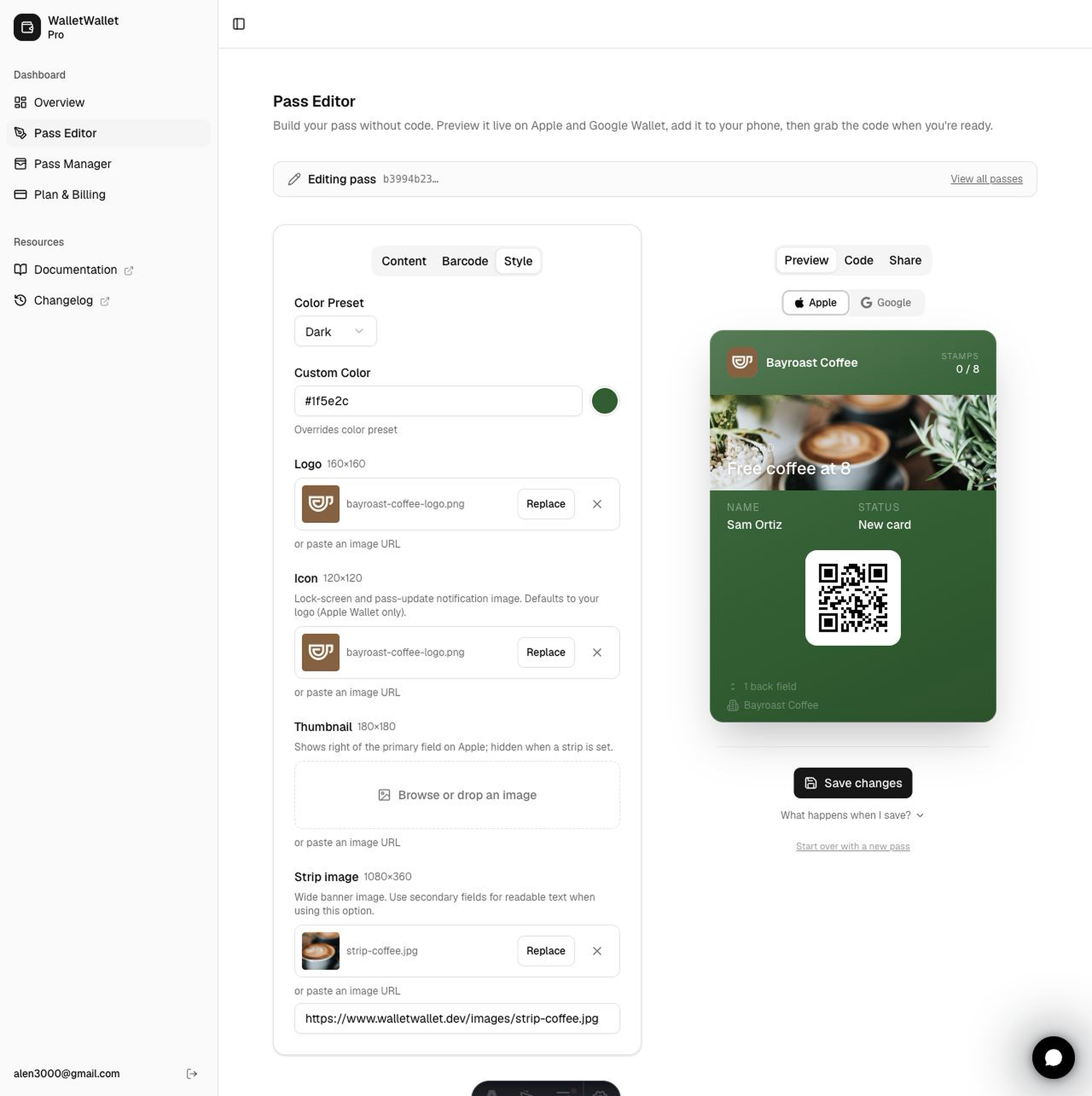
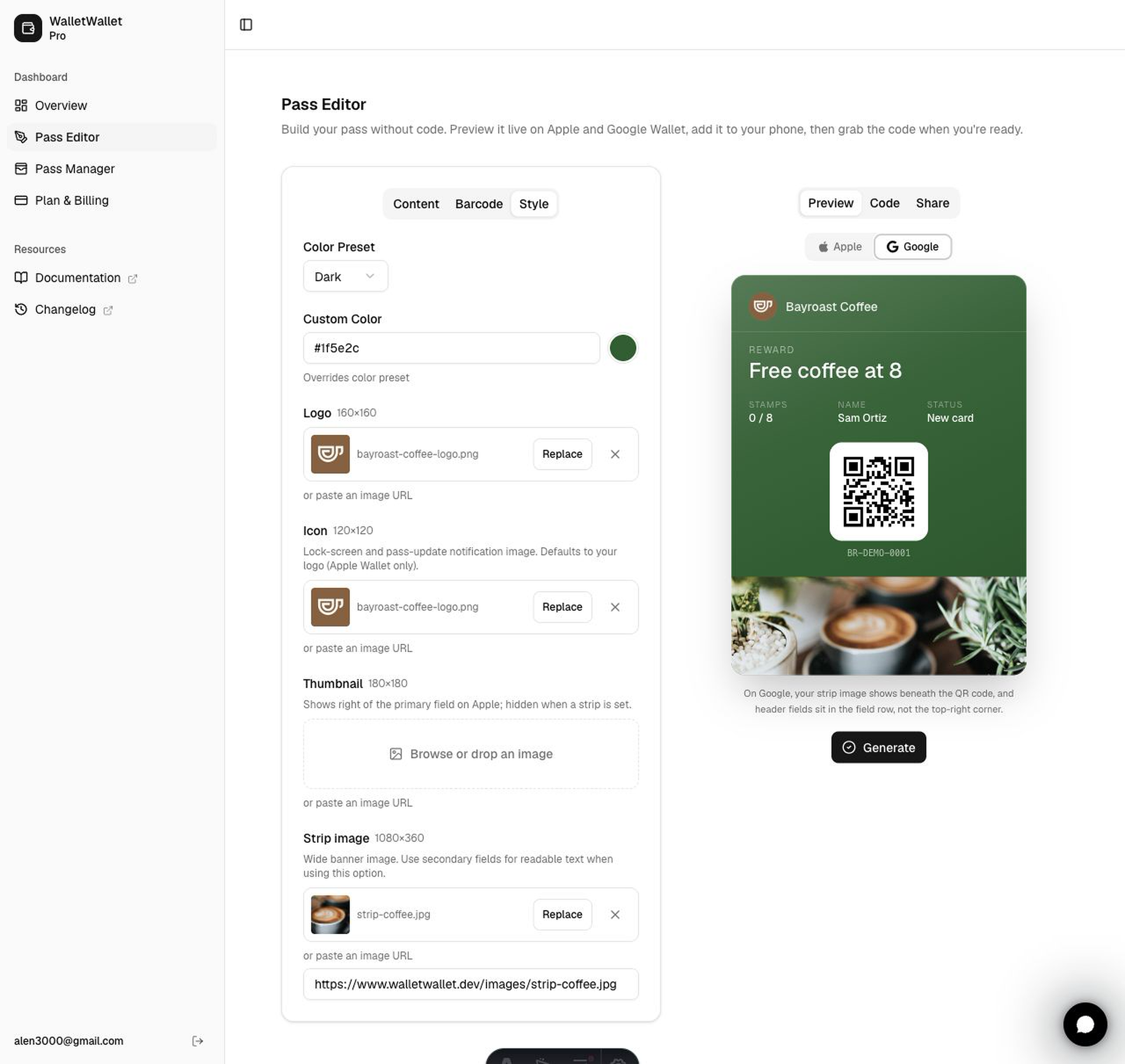
Switch between the previews and keep the most useful information in short text fields. When the card looks right, open the designer’s Code tab. The request shown there is the template Lovable will fill with each customer’s name, code, and stamp count.
4. Connect the pass to the app
Return to Lovable and send this follow-up prompt. It tells the builder exactly how a customer record becomes a live wallet pass.
Connect Bayroast Rewards to WalletWallet using the server-side
WALLETWALLET_API_KEY secret.

For every WalletWallet request, send the header
Authorization: Bearer ${WALLETWALLET_API_KEY}. Keep this request in a server
function so the key is never sent to the browser.

When enrollment succeeds, send POST
https://api.walletwallet.dev/api/passes with a flat JSON body containing:
barcodeValue, barcodeFormat set to "QR", logoText, organizationName,
description, colorPreset set to "green", sharingProhibited, headerFields,
primaryFields, secondaryFields, and backFields.

Use the customer's BR- code as barcodeValue. Build the fields from the current
customer record:
- STAMPS shows the current count out of 8.
- REWARD shows "Free coffee at 8" or "Coffee on us" when ready.
- NAME shows the customer's name.
- STATUS shows the visits remaining, Reward ready, or New card.
- Add a Notifications back field with value "Welcome to Bayroast Rewards."
  and changeMessage "%@". For each wallet message, replace this field's value
  with the new message before updating the pass.

The create response contains serialNumber, shareUrl, googleSaveUrl, and
applePass. Save serialNumber, shareUrl, and googleSaveUrl on the member. Show
shareUrl after enrollment.

After a stamp, correction, redemption, or wallet message, send the complete
updated pass body to PUT
https://api.walletwallet.dev/api/passes/{serialNumber}.

When staff revoke a card, send DELETE
https://api.walletwallet.dev/api/passes/{serialNumber}. Only mark the member as
revoked after WalletWallet confirms the request, and offer Retry sync if it
fails.

Use these wallet messages:
- "3 of 8. Five more visits for a free coffee."
- "7 of 8. One more visit for a free coffee."
- "Reward ready: your next coffee is on us."
- "Reward redeemed. Your next coffee starts a new card."

Show a clear Retry sync action if the pass cannot be created or updated. A
retry should sync the existing customer state without adding another stamp.
Lovable now has the two pieces it needs: the customer data in its database and
the pass template from WalletWallet. The QR code carries the stable BR- member
code, so the scanner can find the same customer on every visit.
Wallet notifications are especially useful for a small loyalty program. The customer sees the new stamp count on the card they already carry, and a timely update can appear on the lock screen. Progress stays visible without asking customers to download and keep another app.
Keep the messages tied to a real change in the program. A new stamp, the final visit before a reward, a reward becoming ready, and the reset after redemption give customers a useful reason to look at the pass again.
5. Create the first staff account
Open Staff sign in from the home page and create the first account. Lovable
will send the first signed-in user to /setup, where you can claim the owner
role and enter the display name shown in the activity history.
After setup, open the dashboard and look through the fictional customers. Try searching by name and member code, then open a member to see their progress, wallet link, actions, and event history.
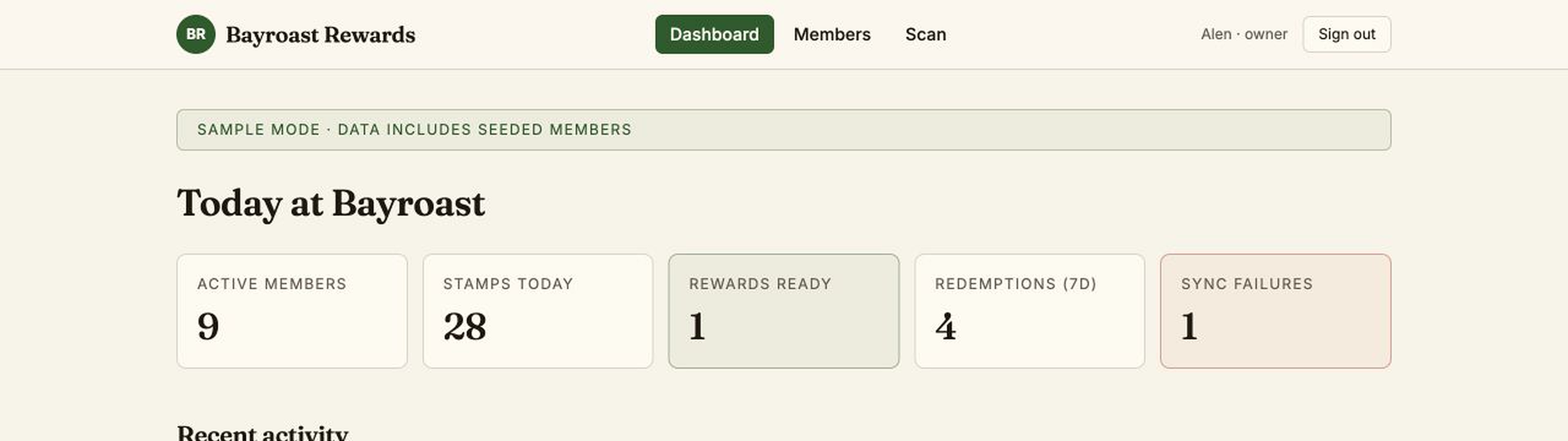
This dashboard is intentionally simple. Active members and stamps show whether customers are using the program, rewards ready tell staff what to expect at the counter, and sync failures point to cards that need attention.
6. Test the complete customer journey
Use a fictional customer and follow the same path that will happen at the cafe:
- Open
/joinand submit a name and email address. - Confirm that the success page shows a wallet install link.
- Open the link on a phone and add the pass to Apple Wallet or Google Wallet.
- Sign in as staff and open
/scan. - Start the camera and scan the QR code on the pass.
- Confirm the customer’s name and add one stamp.
- Check that the member page, event history, and wallet pass all show the new count.
- Add stamps until the reward is ready, then redeem it and confirm the same card returns to zero.
Scanning should only find the customer. Staff still confirm the stamp or reward action, which keeps the interaction quick while avoiding accidental changes. The manual member-code field gives the counter a reliable fallback when a camera is unavailable.
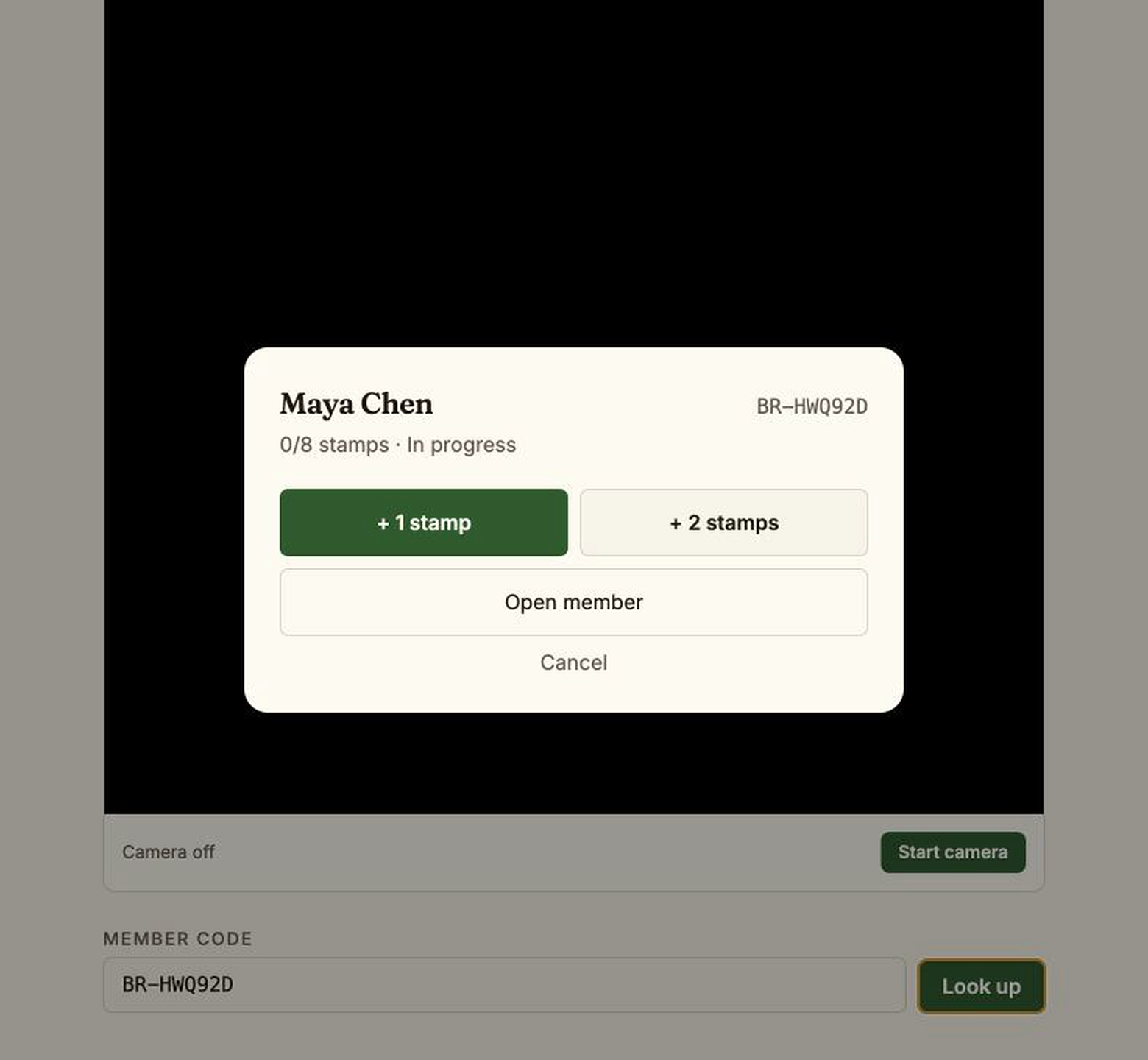
The member page becomes the customer record. It shows progress, the wallet status, the install link, everyday staff actions, and an event history in one place.
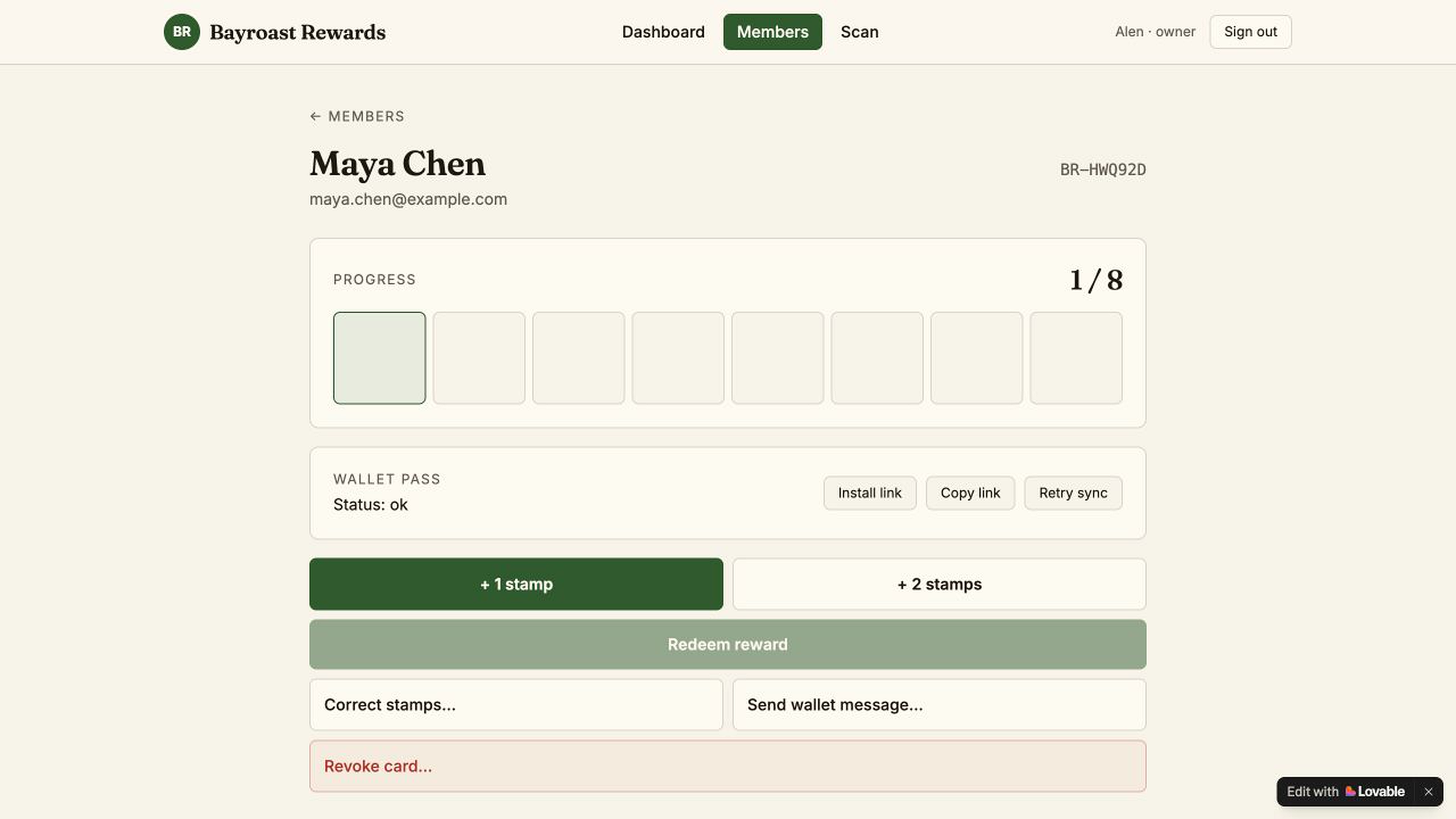
For the final test, run one card from zero to eight stamps, redeem the free coffee, make a correction, send a wallet message, and revoke the card. The same pass should update throughout the whole journey. In the finished Bayroast app, the two-stamp action becomes unavailable at seven stamps, and redemption resets the existing card instead of creating a new one.
The wallet updates are where the program starts to feel alive. After the first stamp, the pass told the customer that seven visits remained. At seven stamps, the message changed to “One more visit for a free coffee.” The eighth stamp announced that the reward was ready, and redemption confirmed that a new card had started. You can also send a short update such as “Fresh coffee is waiting at Bayroast” from the member page. Those messages can reach the lock screen without asking the customer to install another app.
7. Add SMS when you want it
The wallet install link already works as a copyable URL. When you want to send it directly from the member page, Twilio Programmable Messaging is a straightforward option. Bird, Vonage, Sinch, and regional messaging providers can support the same simple workflow.
Ask Lovable to add a Send install link action that calls the provider from a server function. Store the provider credentials in Lovable Secrets, just as you did with the WalletWallet key. The first version only needs to send the member’s wallet link and show whether delivery succeeded.
8. Adapt the program to your business
The Bayroast rule is intentionally small, which makes the app easy to reshape. Change the business name, earning action, goal, and reward in one Lovable message:
| Business | Earning action | Example reward |
|---|---|---|
| Cafe | Buy a coffee | Free standard coffee after 8 |
| Bakery | Buy a loaf | Free pastry after 6 |
| Salon | Complete an appointment | Credit after 5 visits |
| Car wash | Buy a wash | Premium wash after 7 |
| Class studio | Attend a class | Free class after 10 |
You can also add the details that generic loyalty software often leaves out: the service a customer prefers, a location-specific reward, a staff note, a seasonal progress rule, or a dashboard metric that matters to your business. Lovable gives you a quick way to change the workflow while WalletWallet keeps the customer-facing card current on both major phone platforms.
Start with one location and one reward that customers can explain in a sentence. Once staff can run the full join, scan, stamp, and redeem loop comfortably, use the activity history to decide what the next version should do.
Build your first wallet pass
Turn one JSON request into a pass that installs in Apple Wallet and Google Wallet, with live updates that reach both.