How to Build a Gym Membership App with Vercel and Claude
Build a gym membership app and digital membership card with Claude Code, Vercel, Supabase, WalletWallet, staff check-in, renewals, and live updates.
A gym membership app has one job at the front desk: tell staff whether a member can enter. Around that simple decision sit the workflows that make the program useful: joining, choosing a plan, checking in, renewing, freezing an account, and keeping the member’s card current.
Building the program yourself lets those workflows match the way your gym actually operates. You can decide which plans to sell, what staff see at check-in, how freezes work, and when a member should receive a reminder. The first version does not need class booking, workout tracking, billing, and a social feed. It needs to make membership status trustworthy and check-in fast.
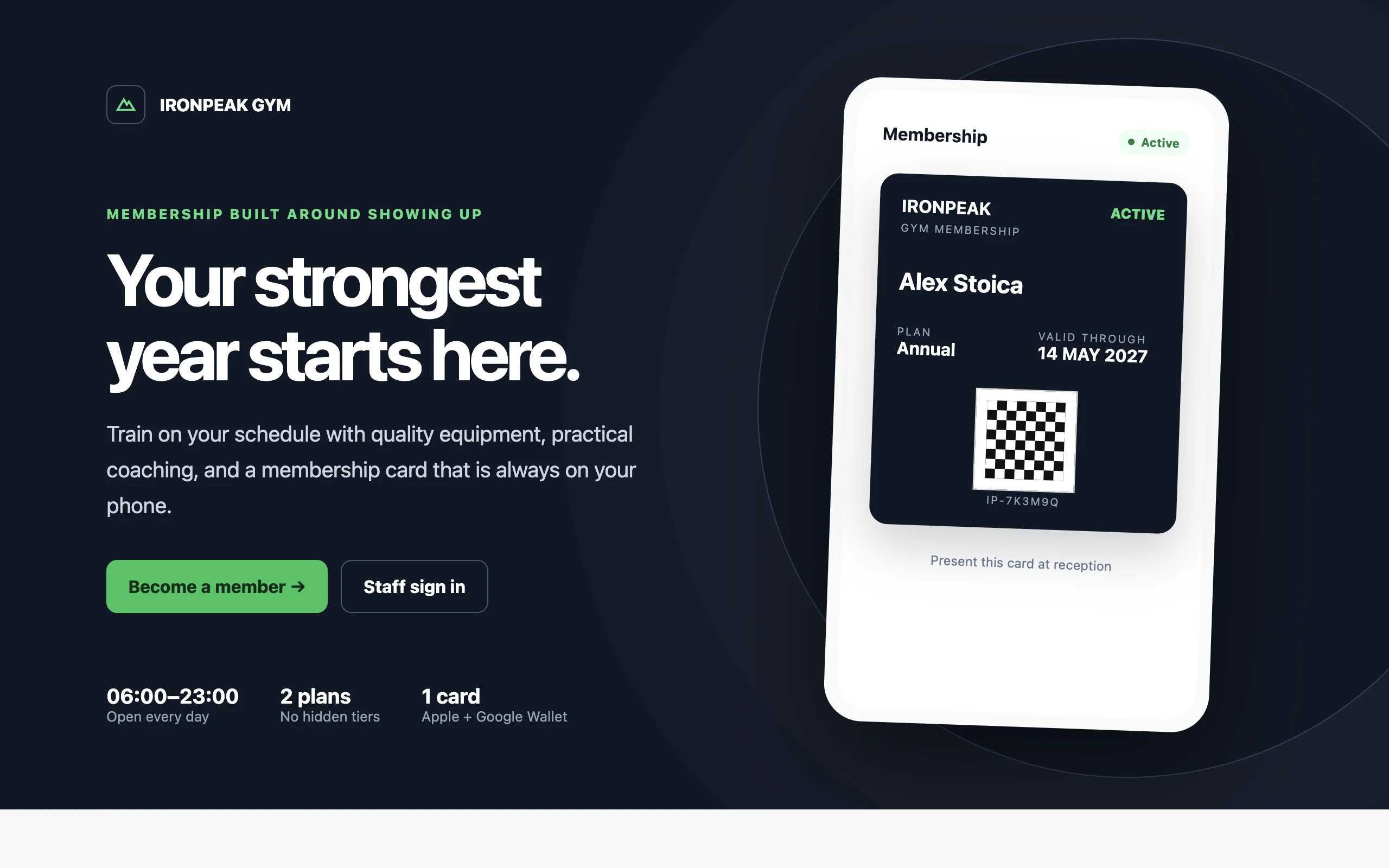
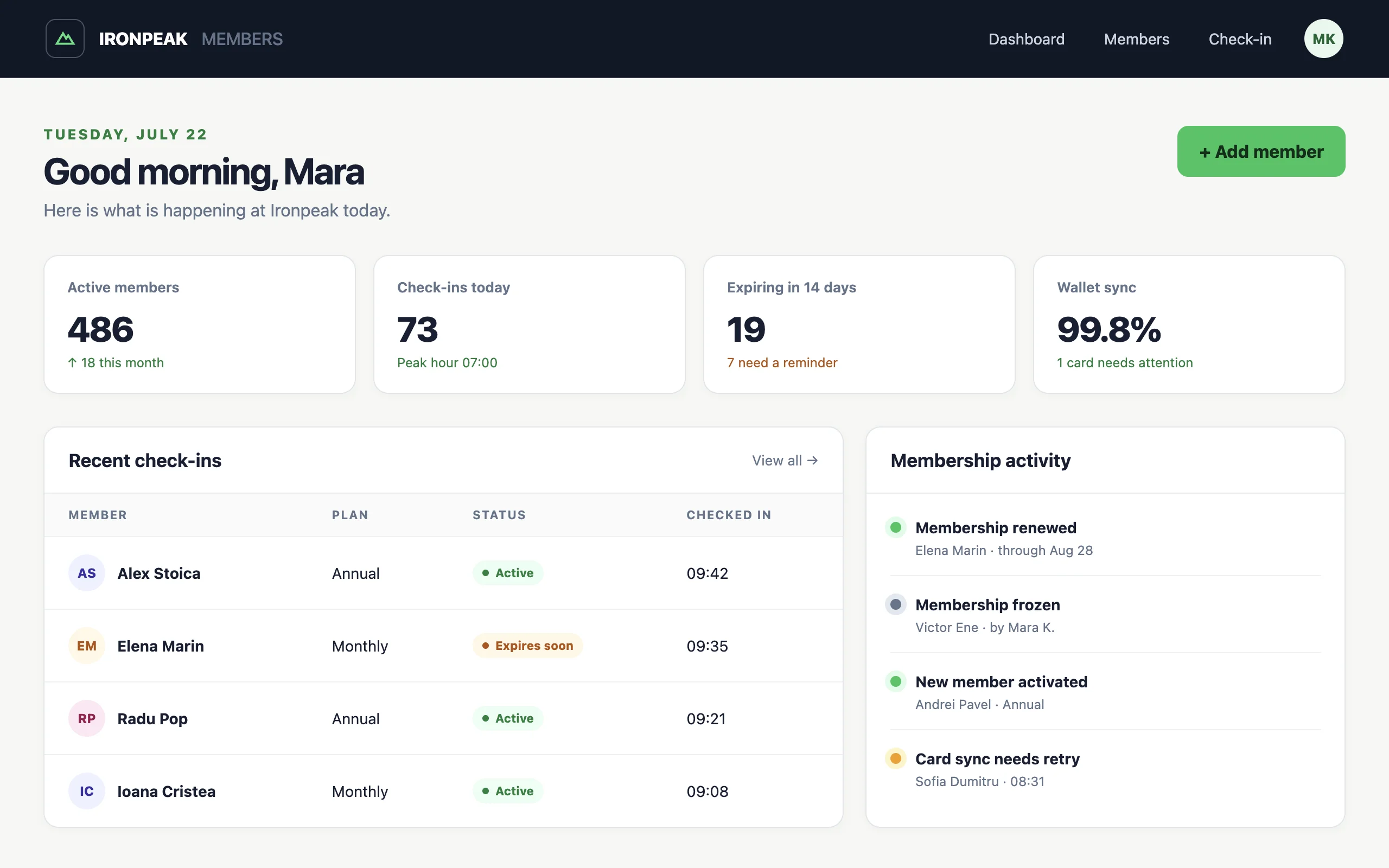
For this example, we will use Ironpeak Gym, an independent gym with monthly and annual memberships. Each member receives a card with a QR code. Staff scan it at the desk, see the current membership status, and confirm the check-in. The same card lives in Apple Wallet and Google Wallet and updates when the membership changes.
Claude Code will build the app in a local project, inspect its own work, and run the checks. Vercel will host the Next.js app and its server functions. Supabase will provide the Postgres database and staff authentication through its Vercel integration, while WalletWallet creates and updates the wallet cards. This is a useful vibe-coding stack because one backend service covers the data, authentication, SQL migrations, and row-level security that Claude needs to connect.
In this tutorial, we will go from an empty folder to a working membership loop. Members will enroll on a public page and receive their card. Staff will sign in to a phone-friendly dashboard, scan a QR code, and immediately see whether the membership is active.
By the end of this tutorial, you will have:
- a public membership enrollment page;
- a staff dashboard and searchable member list;
- QR check-in with a manual member-code fallback;
- active, expiring, expired, frozen, and cancelled membership states;
- a complete history of membership changes and check-ins;
- a branded WalletWallet share page with both install options; and
- one digital membership card that updates in Apple Wallet and Google Wallet.
Start with the front-desk decision
The most important screen is not the dashboard. It is the result staff see after scanning a member’s card.
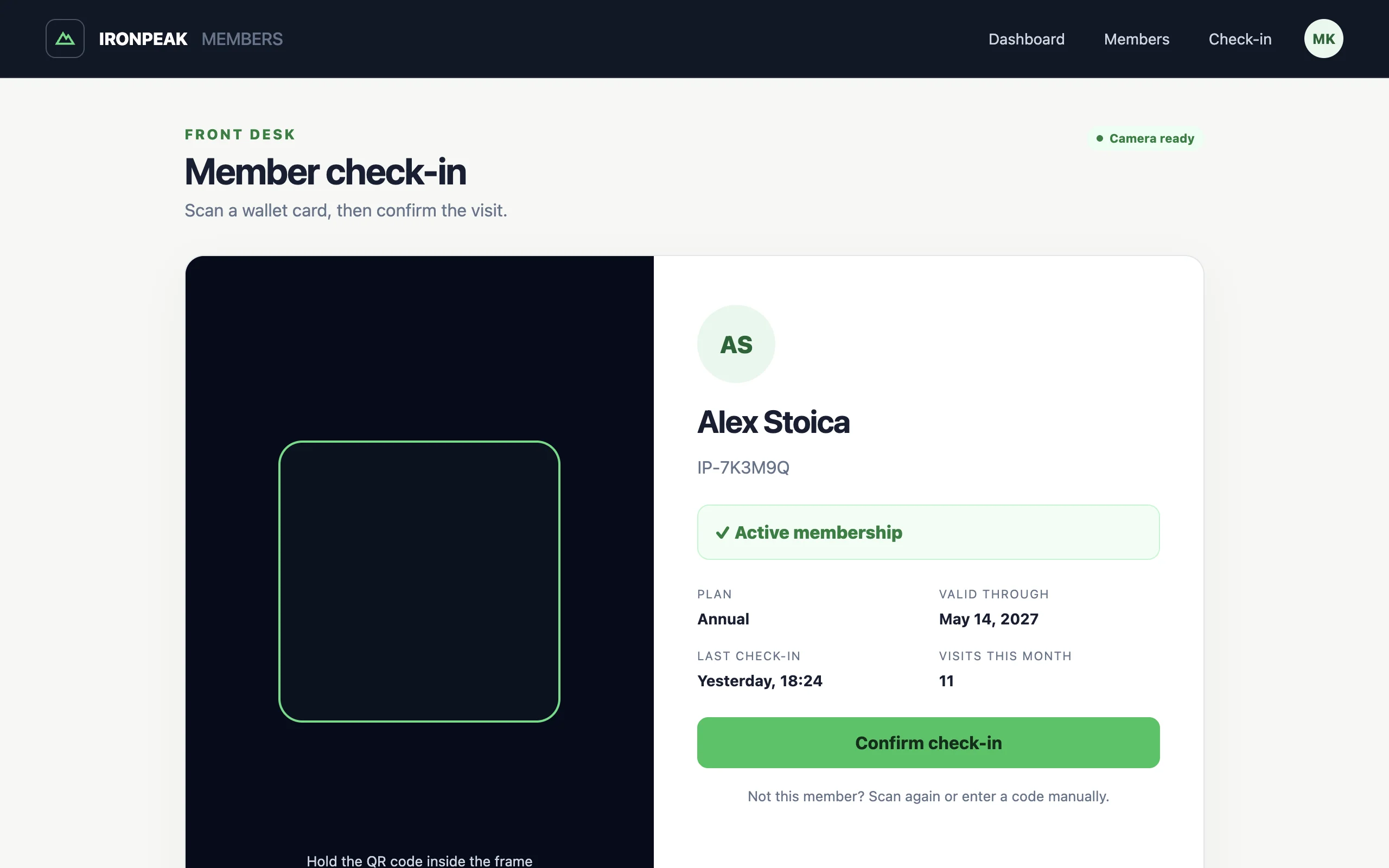
For Ironpeak, that result needs to answer four questions:
- Who is this member?
- Is the membership active right now?
- When does it expire?
- Has this scan already recorded a check-in?
Everything else supports that decision. The member record establishes the person and plan. The event history explains every status change. The stable QR code finds the same record on each visit. An idempotency check prevents a double scan from creating two visits.
The wallet card should show useful status, but the server remains the source of truth. A screenshot or an old card must never be enough to enter. Every scan looks up the current membership in the database before staff confirm access.
Why build your own gym membership app?
Off-the-shelf gym membership software is a good fit when you need its complete package of billing, class schedules, waivers, and access-control hardware. A focused app becomes interesting when your gym has a simpler operation or a workflow that generic software handles poorly.
You may want a plan for founding members, a freeze rule tied to your season, a special staff note, or a check-in screen designed for one busy front desk. A small codebase also gives you room to add billing or door hardware later without putting those integrations in the critical first version.
You need a Claude plan that includes Claude Code, a Vercel account, a GitHub account, and a WalletWallet account with an API key. Install Node.js and Git locally. A phone is helpful when you test the scanner and wallet card.
This tutorial treats payment as an offline staff-confirmed step. Do not mark a membership paid because a customer returned from a payment page. When you add online billing later, change status only after a verified server-side webhook.
1. Ask Claude to build the membership app
Create an empty project, start Claude Code in it, and give it the complete customer and staff journey before asking for individual screens.
mkdir ironpeak-members
cd ironpeak-members
git init
claude
Paste this prompt into Claude Code:
Build a production-minded membership web app called Ironpeak Members for a
single-location independent gym.

Use the latest stable Next.js with the App Router, TypeScript, Tailwind CSS,
server components by default, and server actions or route handlers for writes.
The app will deploy to Vercel. Use Supabase for Postgres and authentication.
Use @supabase/supabase-js and @supabase/ssr rather than adding an ORM. Generate
TypeScript database types from the Supabase schema and keep privileged database
access and secrets on the server.

The gym offers two plans:
- Monthly: 30 days
- Annual: 365 days

Use these membership states: pending, active, frozen, expired, and cancelled.
An active membership permits check-in through its end date. Frozen, expired,
cancelled, and pending memberships do not. Store dates in UTC and show them in
the gym's configured timezone.

Create these pages:

1. A short home page with Ironpeak Gym, Become a member, and Staff sign in.
2. A public /join page that asks for name, email, optional phone number, and
   monthly or annual plan. Make the terms checkbox required. After enrollment,
   show a pending confirmation and do not issue a live membership card yet.
3. A private /dashboard for staff with active members, memberships expiring in
   14 days, today's check-ins, frozen memberships, and recent activity.
4. A private /members page with search by name, email, phone, or member code,
   plus filters for plan and status.
5. A member page with contact details, plan, status, start and end dates,
   wallet status, staff notes, check-in history, and membership event history.
   Include Activate, Renew, Freeze, Resume, Cancel, Correct dates, Send wallet
   message, Retry wallet sync, and Revoke card actions. Require confirmation
   and an optional staff note for consequential actions.
6. A private /check-in page that reads a QR code with the phone camera. A scan
   looks up the member and displays name, photo placeholder, plan, status, and
   end date before staff confirm check-in. Add manual member-code entry when
   the camera is unavailable.

Give each member an unguessable random code beginning with IP-. Never use an
incrementing database ID in a QR code. Store members, staff, memberships,
check-ins, wallet pass details, and an append-only event history. Record the
staff user, timestamp, previous state, new state, and note for every membership
change.

Make check-in a server-side transaction. Re-read the membership during the
write, reject access when it is not active or its date has passed, and prevent
the same member from recording more than one check-in within 60 seconds. Return
the existing check-in when a browser retry repeats the same idempotency key.

Use Supabase Auth with cookie-based server-side sessions for staff email sign-in
and a Supabase Postgres database connected through Vercel Marketplace. Create
separate browser and server Supabase client utilities. Public visitors can
submit enrollment, but only authenticated staff can read member data or change
membership state. The browser may receive the Supabase URL and publishable key,
but never expose SUPABASE_SECRET_KEY or a database connection URL. Enable
row-level security on every public table and write explicit policies. Keep
privileged membership and wallet actions in authenticated server code.

Put the check-in transaction in a version-controlled Supabase SQL migration as
a Postgres function. It must validate the staff user, lock and re-read the
membership, evaluate its status and end date, enforce the 60-second duplicate
window and idempotency key, insert the check-in and event, and return the result
atomically. Do not spread that operation across several browser requests.

Prepare the server to use a WALLETWALLET_API_KEY environment variable. Never
prefix it with NEXT_PUBLIC_. Activating a membership creates its wallet card.
Renewing, freezing, resuming, expiring, cancelling, or sending a message updates
that same card. Revoking deletes it.

Add five clearly marked fictional members across the active, expiring, frozen,
expired, and pending states. Put seed data behind an explicit development-only
command and never seed it during a production build.

Use deep navy #111827, signal green #16a34a, warm white #fafaf9, charcoal text,
subtle borders, and generous spacing. Status must use text and iconography as
well as color. Make the check-in result and staff actions easy to use on a
phone. Avoid decorative charts, gradients, and hover movement.

Before editing, write a short implementation plan and proposed data model. Then
build the app in small steps. After each step, run the relevant lint, type, and
test checks. Add tests for membership eligibility, renewal dates, freeze and
resume, duplicate check-ins, authorization, and wallet retries. Finish by
running the full test suite and production build, then summarize any remaining
manual setup.
Review Claude’s plan before it starts editing. The data model should separate a person, their current membership, check-ins, wallet identifiers, and immutable events. Confirm that authorization is enforced in server code, not only by hiding buttons in the interface.
Let Claude build the first version. If it stops for credentials, ask it to add typed environment-variable validation and continue with mocked services. You can connect real services after the local flow works.
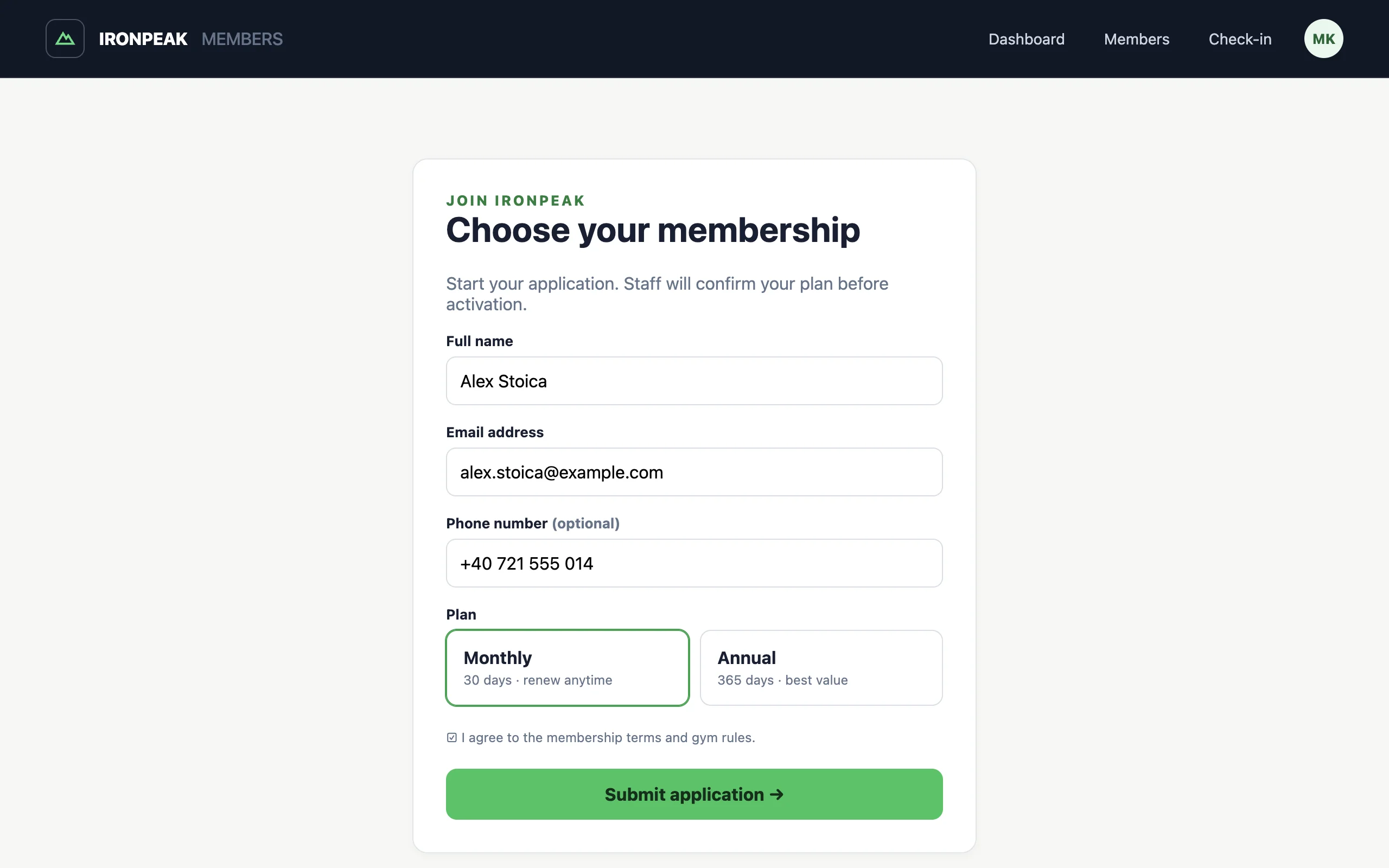
The enrollment page should keep the first commitment small. It collects the details staff need to review the application, but it does not pretend that a submitted form is an active, paid membership.
2. Connect Supabase and staff authentication
Create a Vercel project from the Git repository. In the project’s Storage tab, install Supabase from the Marketplace and connect it to the project. The integration provides Postgres, Auth, Storage, Realtime, and the environment variables the Next.js app needs. For this version, use only Postgres and Auth; the smaller surface is easier to test and secure.
In Supabase, enable the staff sign-in method you want to use. For a small team,
email magic links avoid shared front-desk passwords. Disable unrestricted
public staff registration: create or invite staff deliberately, and keep an
application-level staff role that every private route verifies.
The Vercel integration supplies NEXT_PUBLIC_SUPABASE_URL and
NEXT_PUBLIC_SUPABASE_PUBLISHABLE_KEY for safe browser access, plus
SUPABASE_SECRET_KEY for server-only administrative work. The publishable key
does not replace row-level security. Keep the secret key out of client
components, browser bundles, logs, and screenshots.
Add WALLETWALLET_API_KEY in Vercel’s project settings for Development,
Preview, and Production as appropriate. Treat it as sensitive. Do not name it
NEXT_PUBLIC_WALLETWALLET_API_KEY; variables with the NEXT_PUBLIC_ prefix can
be included in browser JavaScript.
Pull the development environment into the local project, link the Supabase CLI to a dedicated development project, review the migration, and apply it:
vercel link
vercel env pull .env.local
npx supabase init
npx supabase link --project-ref YOUR_PROJECT_REF
npx supabase db push --dry-run
npx supabase db push
npx supabase gen types typescript --linked > src/lib/database.types.ts
npm run dev
Commit the supabase/migrations directory and generated database types. Do not
make later schema changes directly in the hosted Table Editor: ask Claude to
create another SQL migration, test it, and push it through the same workflow.
For a completely local stack, Supabase also supports supabase start and
supabase db reset; that route requires a Docker-compatible runtime.
Ask Claude to inspect the environment variable names actually generated for the project before changing the code. Marketplace integrations can evolve, so the implementation should not rely on names guessed in the first prompt.
3. Design the gym membership card
Open the WalletWallet Pass Designer in another tab. Use a QR barcode and keep the front of the card focused on the decision a member and staff care about.
Use these values for Ironpeak:
- Logo text: Ironpeak Gym
- Organization: Ironpeak Gym
- Background:
#111827 - Barcode: QR with
IP-DEMO-7K3M9Q - Header:
STATUS/ACTIVE - Primary:
MEMBER/ a fictional member name - Secondary:
PLAN/Monthly - Secondary:
VALID THROUGH/ a future date - Back:
MEMBER ID/IP-DEMO-7K3M9Q - Back:
Present this card at reception. Entry is confirmed against the live membership record.
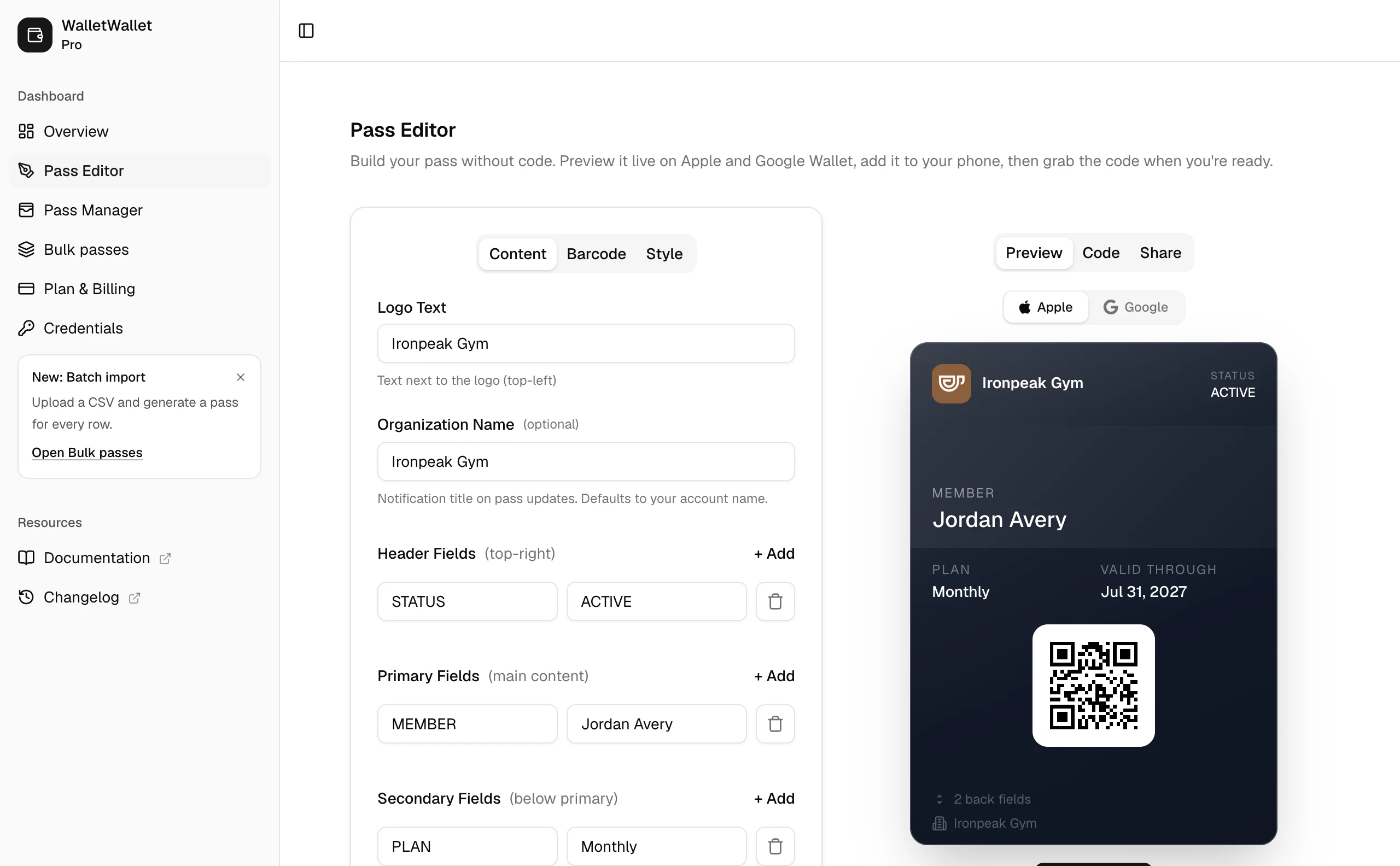
Preview the pass in both Apple Wallet and Google Wallet. Keep labels short and do not rely on a field staying in exactly the same position on both platforms. The barcode value should contain only the stable random member code, never a name, email address, membership status, or database credential.
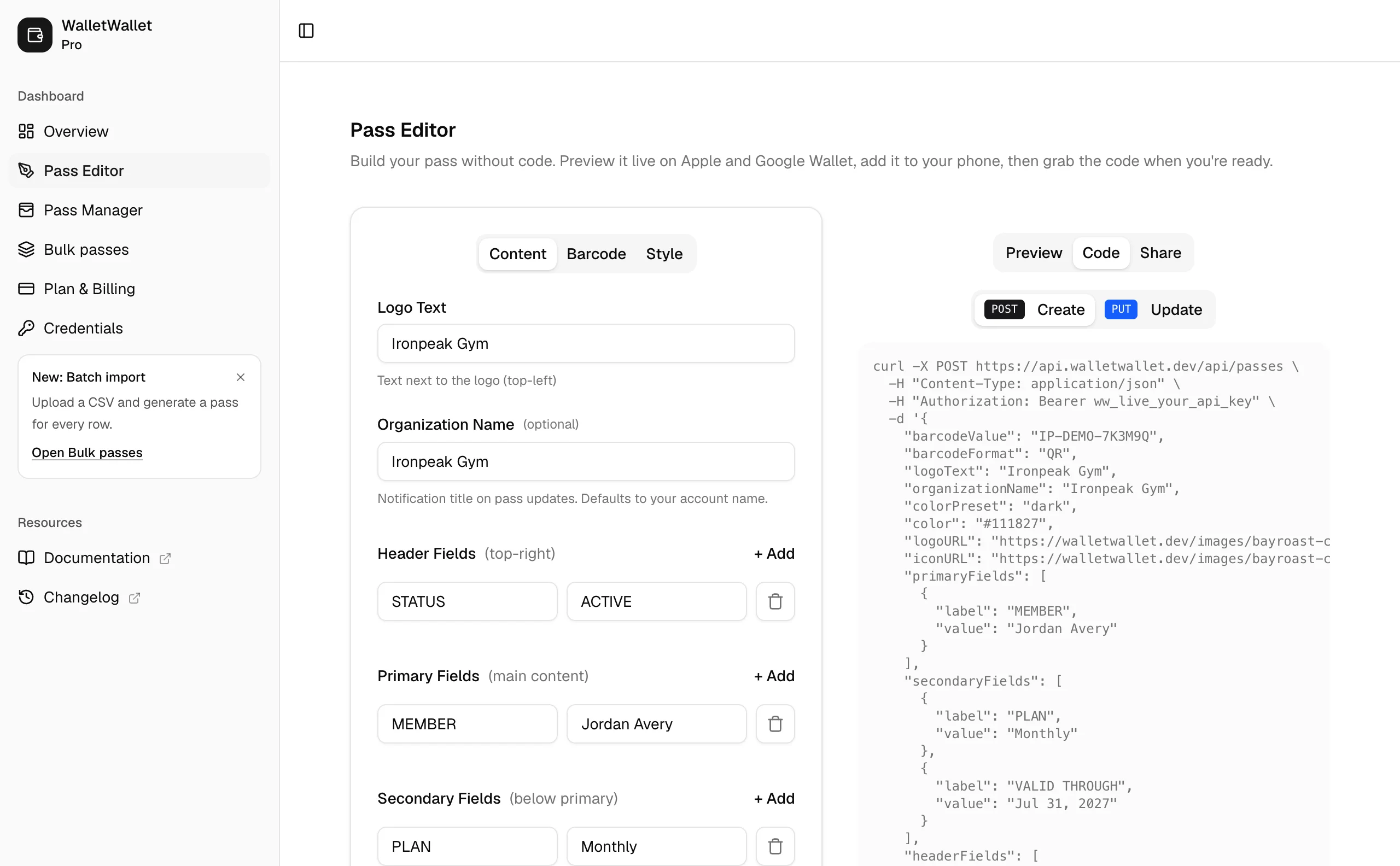
When the card looks right, open the designer’s Code tab. Keep that request nearby; Claude will turn it into a typed server-side pass builder.
4. Connect WalletWallet to the app
Return to Claude Code and send this follow-up prompt:
Connect Ironpeak Members to WalletWallet using the server-only
WALLETWALLET_API_KEY environment variable.

Create one typed module for WalletWallet requests. For every request, send:
Authorization: Bearer ${WALLETWALLET_API_KEY}
Content-Type: application/json

When staff activate a pending membership, send POST
https://api.walletwallet.dev/api/passes with a flat JSON body containing:
barcodeValue, barcodeFormat set to "QR", logoText, organizationName,
description, colorPreset set to "dark", sharingProhibited set to true,
headerFields, primaryFields, secondaryFields, and backFields.

Build every field from server-side member and membership records:
- barcodeValue is the member's stable IP- code.
- STATUS is ACTIVE, EXPIRES SOON, FROZEN, EXPIRED, or CANCELLED.
- MEMBER is the member's full name.
- PLAN is Monthly or Annual.
- VALID THROUGH is the formatted end date.
- MEMBER ID is the IP- code.
- The back of the pass explains that reception verifies live status.
- Add an UPDATES back field with changeMessage "%@". Change its value when a
  staff member sends a wallet message or membership state changes.

The create response contains serialNumber, shareUrl, googleSaveUrl, and
applePass. Save serialNumber, shareUrl, and googleSaveUrl only after creation
succeeds. Show shareUrl on the member page and in the activation confirmation.

After renewal, freeze, resume, expiration, cancellation, correction, or a
wallet message, send the complete rebuilt pass body to PUT
https://api.walletwallet.dev/api/passes/{serialNumber}.

Use these automatic update messages:
- "Membership active through {date}."
- "Membership renewed through {date}."
- "Membership frozen. Speak with reception before entry."
- "Membership active again. Welcome back."
- "Membership expires in 7 days."
- "Membership expired. Renew at reception."
- "Membership cancelled. Speak with reception if this looks wrong."

When staff revoke a card, send DELETE
https://api.walletwallet.dev/api/passes/{serialNumber}. Only clear the wallet
identifiers after WalletWallet confirms deletion.

Never change membership state inside the wallet retry action. Store the desired
pass state in the database, record the last sync error and attempt time, and let
Retry wallet sync rebuild the card from current server data. Repeated retries
must not create a second pass. If pass creation succeeded remotely but the
local response was interrupted, show the case for staff review instead of
blindly creating another card.

Mock HTTP requests in tests. Cover create, update, delete, non-2xx responses,
timeouts, malformed responses, and a retry that syncs current state without
changing membership or check-in history. Run the full test suite and production
build when finished.
The membership database and wallet card now have distinct responsibilities. Supabase decides whether entry is allowed. WalletWallet gives the member a convenient, current card. A wallet sync failure should appear to staff, but it must not erase a valid membership or silently change access.
5. Activate the first member
Submit a fictional member through /join. Sign in as staff, open the pending
record, confirm the plan and dates, and choose Activate membership.
Activation should perform three visible operations:
- validate and activate the membership on the server;
- create the WalletWallet pass and store its identifiers; and
- record an activation event with the staff user and timestamp.
If the wallet request fails, keep the membership decision explicit. A gym may choose to let an active member enter while staff retry card creation, but the dashboard must show that the card is not synced. Do not roll the member’s paid status backward merely because an external card service is temporarily unavailable.
Open the returned install page on a phone and add the card to Apple Wallet or Google Wallet. Confirm that the name, plan, status, end date, and QR member code match the database.
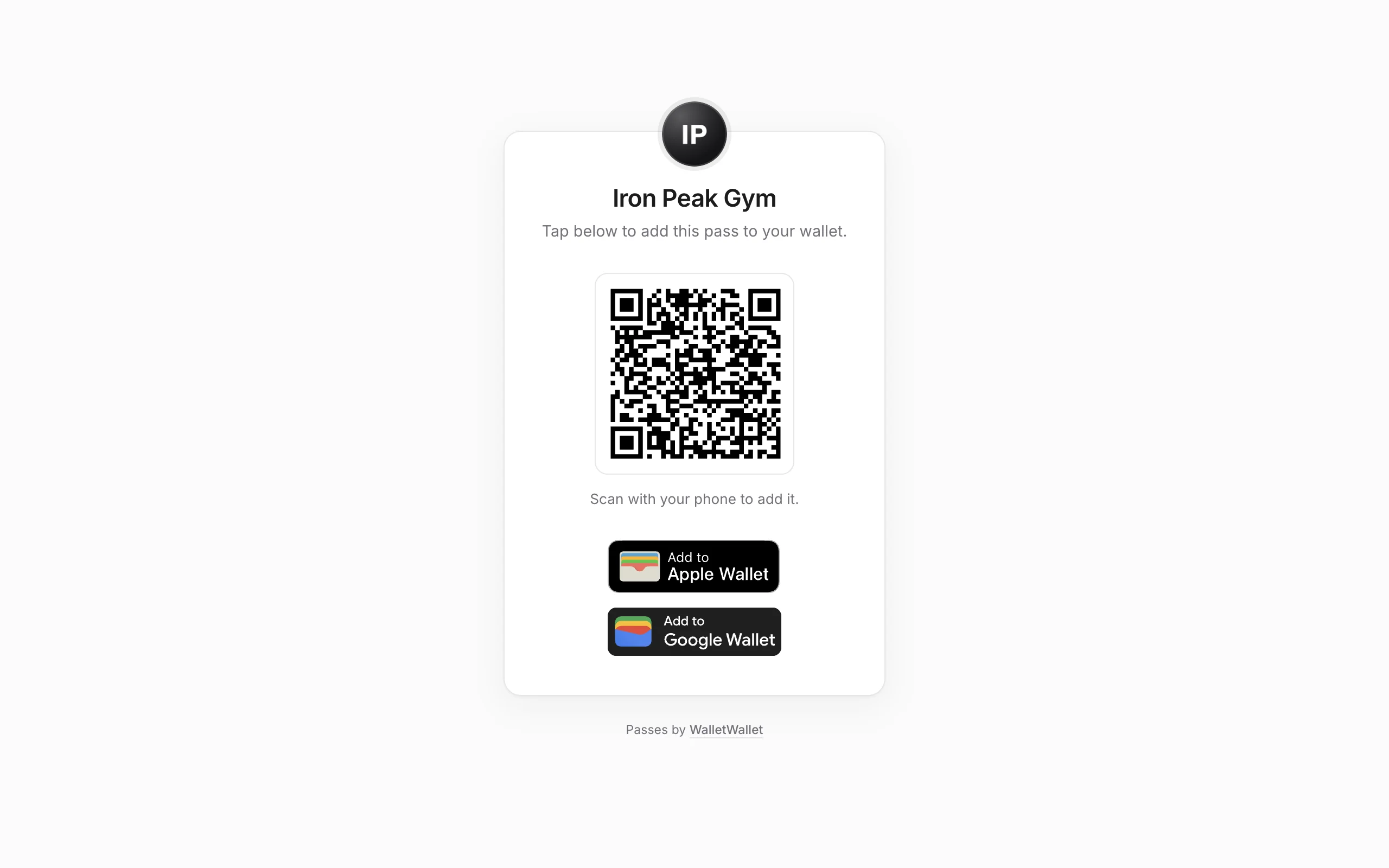
The shareUrl is the member-facing handoff. It is one public WalletWallet URL
that shows the appropriate install action on a phone and a QR code on desktop,
so Ironpeak does not need to build or host a second delivery page. Send this URL
after activation and keep it on the member record for staff to copy again.
6. Test the complete check-in journey
Use a fictional account and follow the same path that will happen at reception:
- Enroll the member and activate the membership as staff.
- Add the pass to Apple Wallet or Google Wallet.
- Open
/check-inon the reception phone. - Scan the QR code on the pass.
- Confirm that the app displays current server-side status and end date.
- Confirm the check-in and verify that one event appears in the history.
- Scan again immediately and confirm that the duplicate guard returns the original check-in instead of recording a second visit.
- Freeze the membership and scan again. Entry should be denied even if the phone still shows an older version of the pass.
- Resume and renew the membership, then confirm the pass receives the new status and end date.
- Expire and cancel test memberships and confirm that neither can check in.
Scanning should only find the member and evaluate eligibility. Staff still confirm the visit, which avoids accidental check-ins when the camera sees the same code twice. Manual code entry gives reception a fallback when the camera is unavailable or a phone screen is damaged.
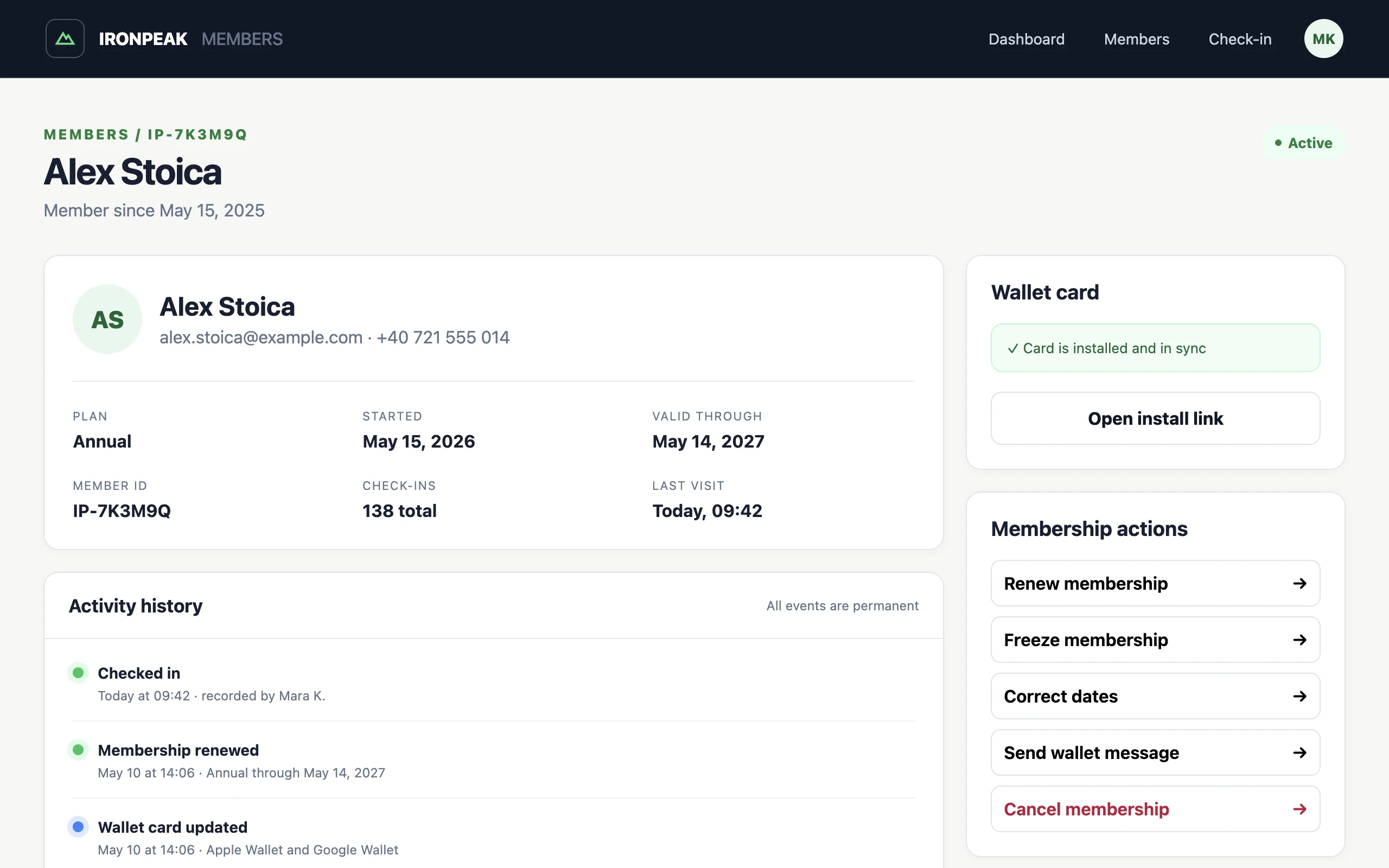
The member page is the durable operating record. It brings the current plan, wallet health, staff actions, and append-only history together without forcing staff to reconstruct what happened from several screens.
Test authorization separately. A signed-out visitor must not be able to search members, read contact details, activate a plan, change dates, record a check-in, or call wallet actions by sending requests directly. Hiding private pages in the navigation is not access control.
7. Deploy to Vercel
Ask Claude to do one final release review:
Prepare Ironpeak Members for its first Vercel preview deployment.

Inspect the complete diff and look specifically for exposed secrets, missing
server-side authorization, trusting membership data from the browser, unsafe
date handling, duplicate check-ins, non-idempotent wallet retries, production
seed data, and personal data in logs.

Run formatting, lint, type checking, unit and integration tests, and the
production build. Fix failures instead of suppressing them. Then give me a
short manual verification checklist for the Vercel preview, Supabase Auth,
Supabase migrations and RLS policies, and one real WalletWallet test pass. Do
not deploy or run production migrations until I confirm the checklist.
Push the project to GitHub. Vercel creates a preview deployment for a connected non-production branch. Use that URL to test staff authentication callbacks, database access, scanning over HTTPS, and the real wallet integration without changing the production site.
Before promoting the deployment, confirm that Production has its own database
configuration and WALLETWALLET_API_KEY, run the production migration through
your chosen release workflow, and repeat the complete membership journey with
a clearly marked test member.
8. Add billing and reminders when the core works
The first version keeps payment confirmation with staff so the membership state machine is easy to inspect. When the front-desk loop is dependable, add a billing provider through verified server-side webhooks.
The safe sequence is:
- receive the webhook on a server route;
- verify its signature;
- store the provider event ID and reject duplicates;
- update the membership in a database transaction;
- append a membership event; and
- sync the wallet card from the new database state.
Do not let a redirect URL, browser request, or unverified email mark a member as paid. Keep billing state and access state separate enough that staff can see why a membership is active, frozen, or past due.
You can also add expiry reminders. A daily scheduled job can find memberships ending in 14, 7, or 1 day and queue a wallet update or email. Store a reminder event so the same member does not receive the same notice every time the job is retried.
Adapt the program to your gym
Ironpeak starts with two plans and one location. That boundary keeps the access decision clear while staff learn the workflow. From there, you can add the details that matter to your operation:
| Gym model | Membership rule | Useful next feature |
|---|---|---|
| Independent gym | Monthly or annual access | Billing webhooks |
| Class studio | Credits or class packs | Booking and attendance |
| Climbing gym | Membership plus waiver | Waiver expiry status |
| 24-hour gym | Active plan and door access | Hardware access log |
| Multi-location group | Plan-specific locations | Location permissions |
Do not add each feature by squeezing another meaning into active. Class
credits, waivers, payment state, and door permissions deserve their own fields
and histories. The check-in service can combine those rules into one clear
decision and explain which rule denied entry.
Start with one location, two plans, and a check-in flow staff can trust. Once the member record, event history, and wallet card stay in step through a full membership lifecycle, use real front-desk questions to decide what Claude should build next.
Build your first wallet pass
Turn one JSON request into a pass that installs in Apple Wallet and Google Wallet, with live updates that reach both.