Featured Actions and Poster Passes, on Apple Wallet and Google Wallet
iOS 27 adds tappable tiles and a full-bleed poster layout to Apple Wallet passes. Here is how to add both from the pass editor or the API, how the same pass lands on Google Wallet and on phones before iOS 27, and how the editor previews it.
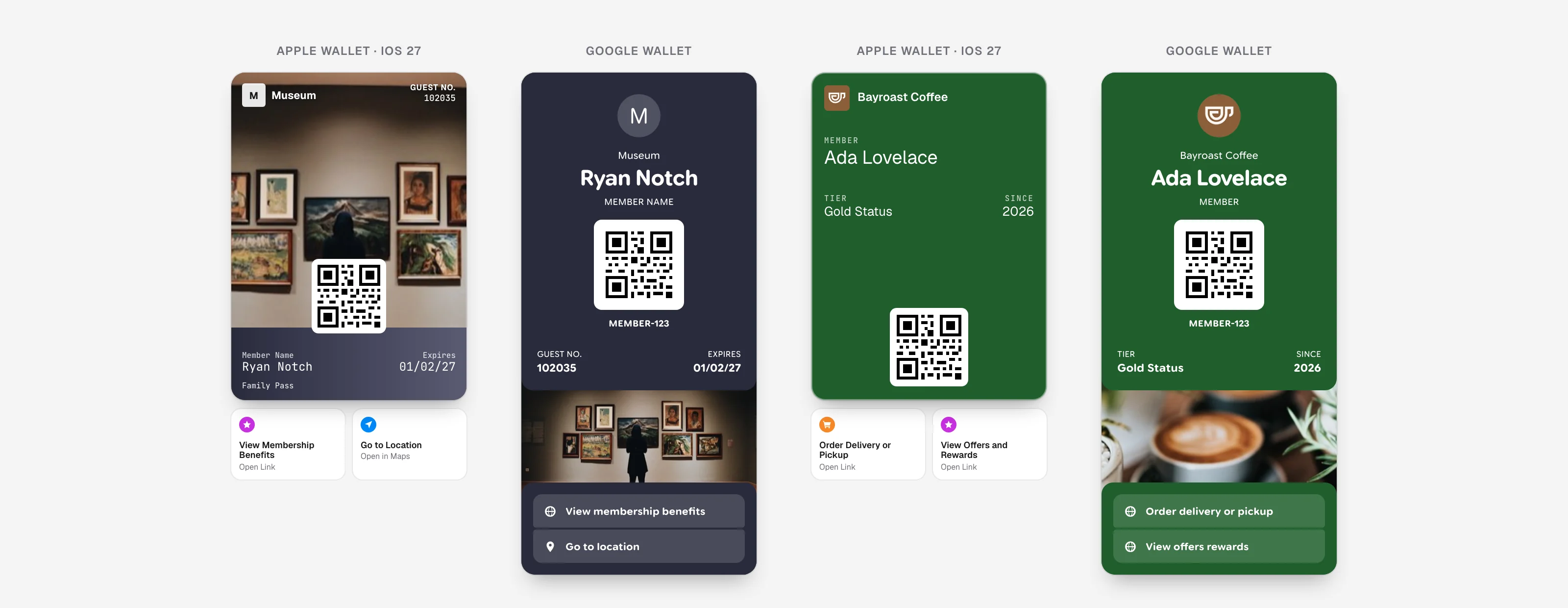
iOS 27 adds two things to Apple Wallet passes: Featured Actions, tappable tiles under the pass, and the Poster Generic style, a full-bleed image behind the pass content. Both were announced at WWDC in June; our roundup of the iOS 27 and Google I/O Wallet changes covers the rest of that batch. Both are Apple concepts with no direct equivalent on Google Wallet. Both are now in the WalletWallet pass editor and on the API request, on the Pro plan. One pass produces the Apple version with the new features, a Google Wallet pass that carries the same content, and a classic Apple pass for phones that have not moved to iOS 27. This post covers what each feature does, how to add it, and how the compatibility works.
Featured actions
Apple draws up to two tiles under the pass, each with an icon and a label it picks from the action’s type. You choose the type and where it goes. Some of the types: order for delivery or pickup, viewOffersRewards, membershipBenefits, place for directions, call, bookAppointment, addToBalance, and viewSchedule. The full list of fourteen, with Apple’s icon and wording for each, is in our guide to Apple Wallet Featured Actions.
In the pass editor, the Content tab has a Featured Actions section. Add a row, pick the action from the list, paste the link, and the tile appears under the pass in the preview.
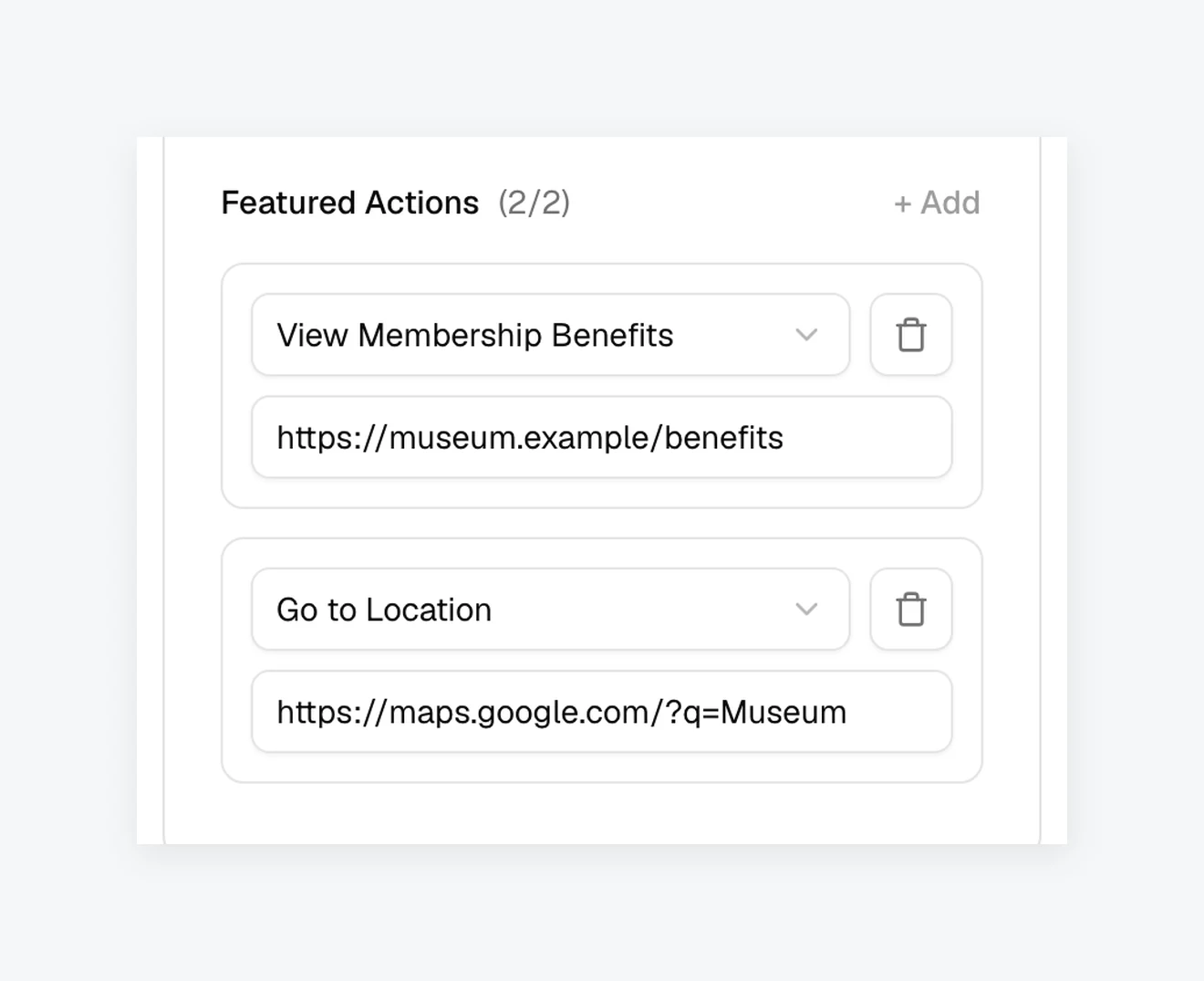
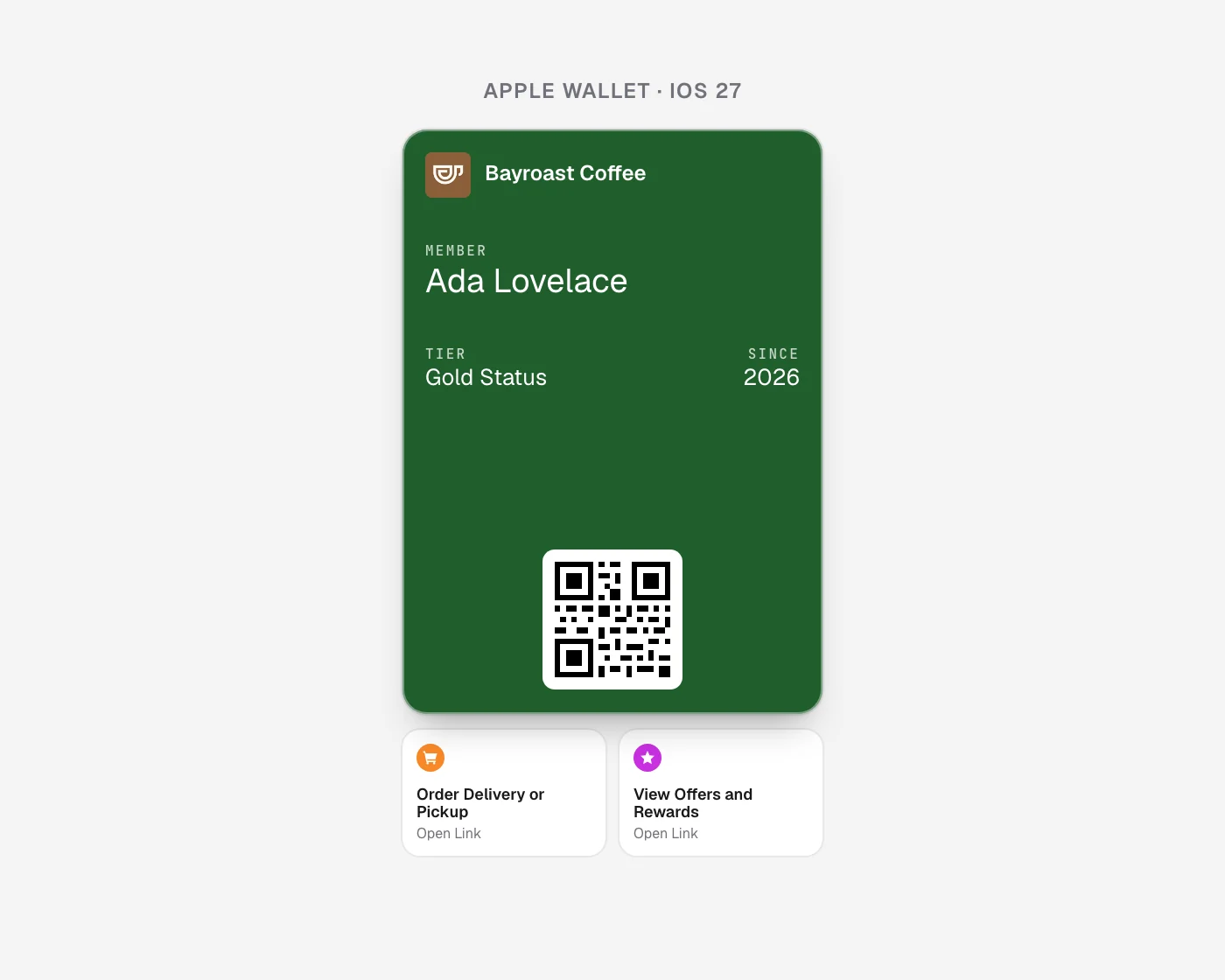
Two rules come from testing on devices. call takes a phone number and every other type takes a public HTTPS link. And Wallet hides every tile on a pass when any one type is unknown, so the editor and the API only accept types from Apple’s list rather than letting a typo blank the whole row.
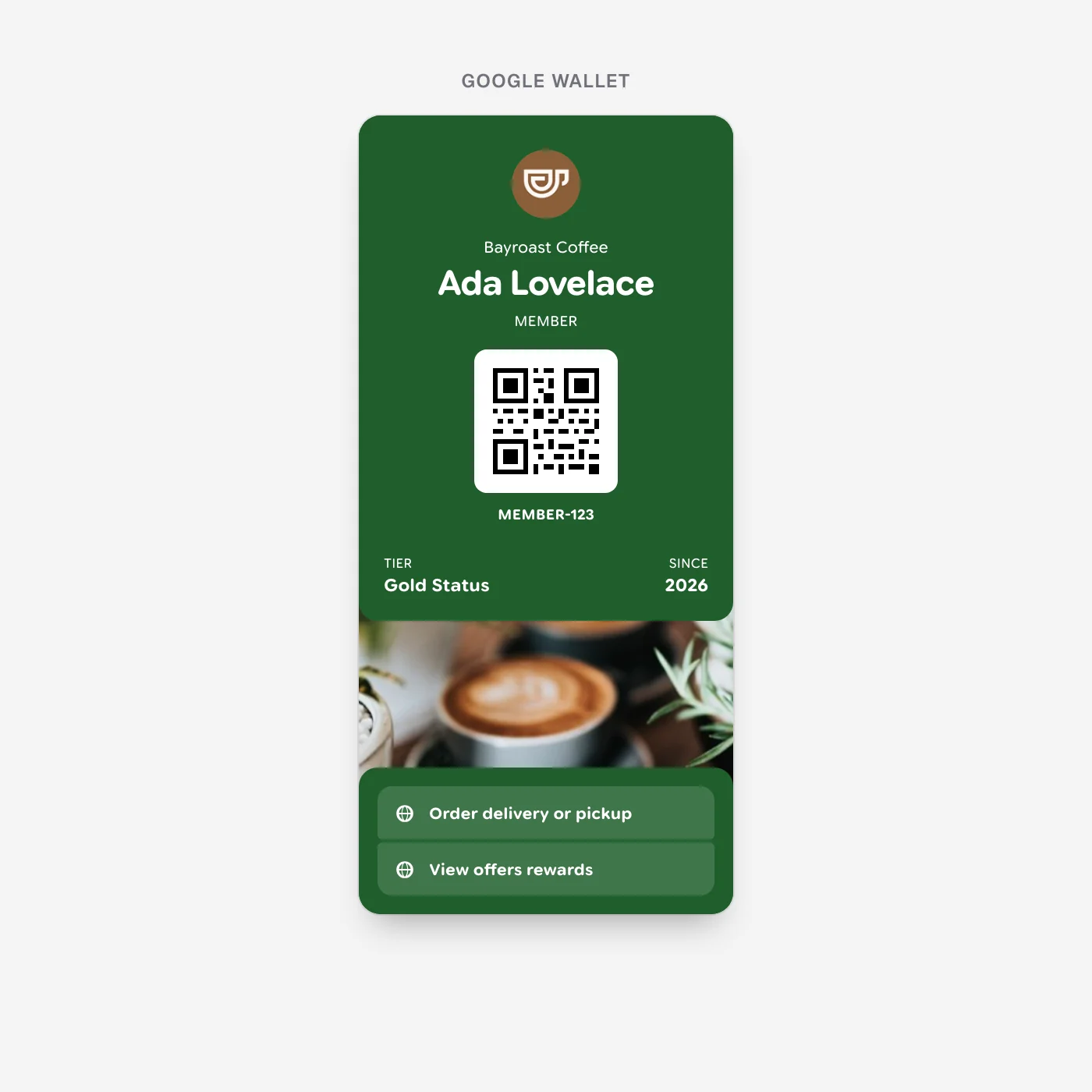
Google Wallet has no tiles on the card face. What it has is a links module, a list of tappable rows in the pass details, so each featured action becomes a row there. Google needs a label where Apple derives one, so the type is spelled out: membershipBenefits reads “Membership benefits”. A phone action stays a phone link. The rows sit ahead of any link-shaped back fields the pass already had, though Google itself groups rows by kind, map links first, then phone, email, and web, so the order on the card can differ from the order you set. Phones on iOS 26 and earlier ignore the actions.
Actions update like any other field. Save the pass with a different set and the tiles change on every installed phone, so a membership card can gain a renew tile in its renewal month and lose it after.
Over the API
The same thing on the request is one array, in priority order:
{
  "logoText": "Bayroast Coffee",
  "primaryFields": [{ "label": "MEMBER", "value": "Ada Lovelace" }],
  "barcodeValue": "MEMBER-123",
  "barcodeFormat": "QR",
  "featuredActions": [
    { "identifier": "order", "type": "order", "url": "https://example.com/order" },
    { "identifier": "offers", "type": "viewOffersRewards", "url": "https://example.com/rewards" }
  ]
}
The poster style
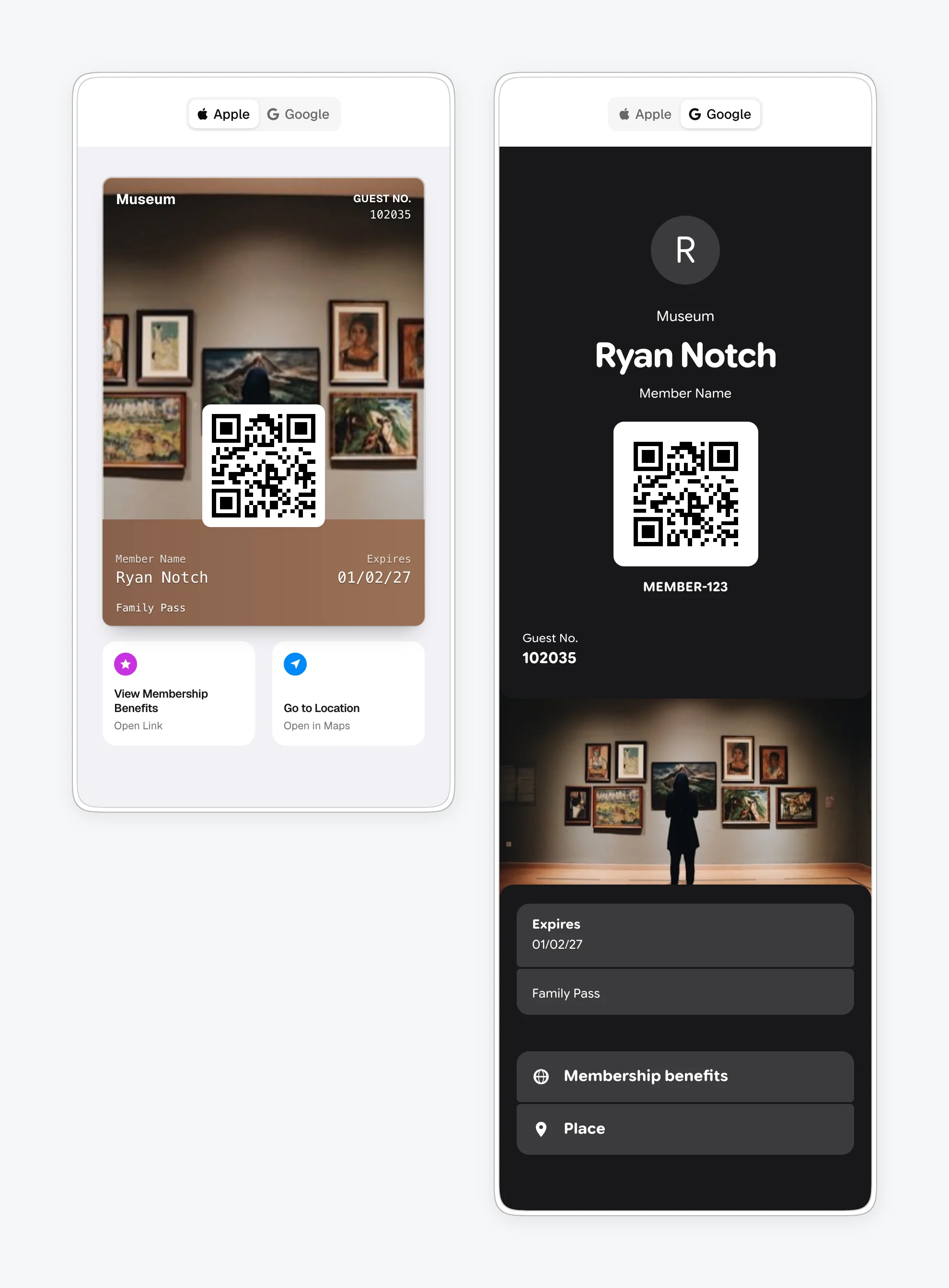
A poster pass is the image. The logo and logo text sit top left, one header field top right, and the barcode near the bottom, biting into a strip along the lower edge that Wallet colors from the artwork itself. Up to four primary fields and two footer values sit on that strip. Apple positions the style for membership, loyalty, rewards, and gift cards, anywhere the artwork should carry the design.
In the editor, the Style tab has a Background slot. Drop in an image and the cropper frames it at Apple’s poster size; the Apple preview switches to the poster layout as soon as the image is set.
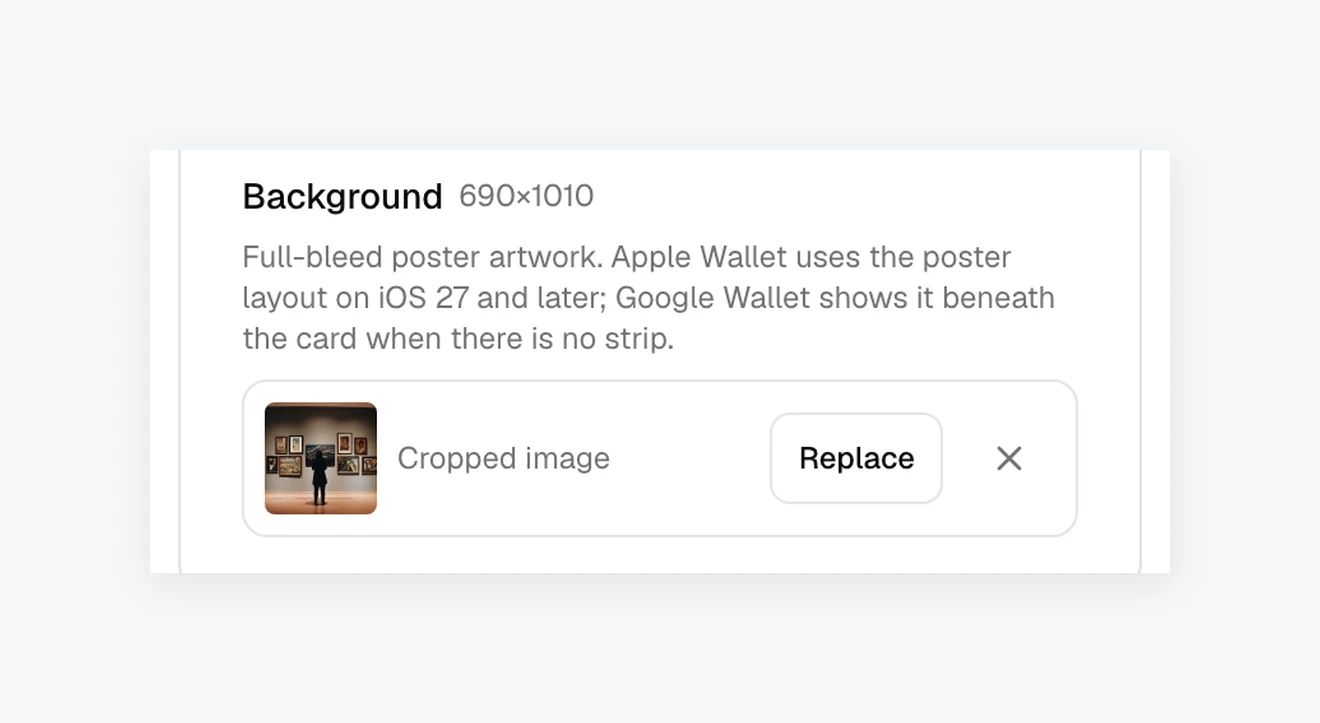
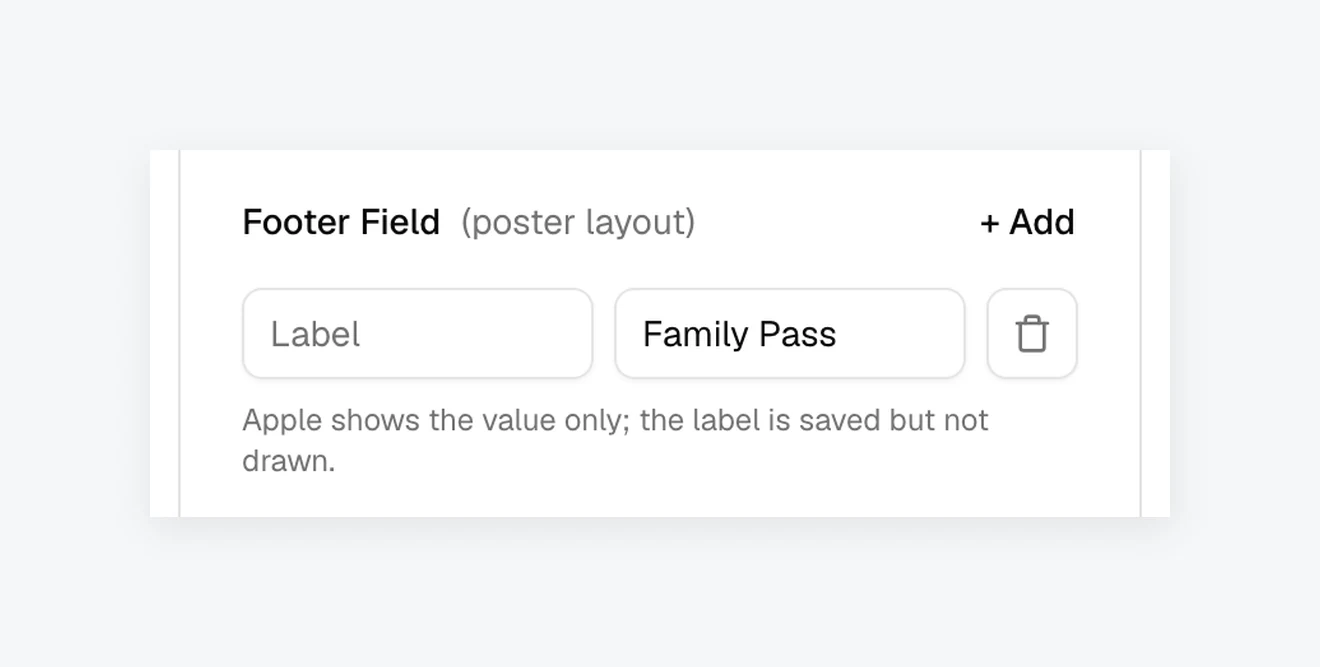
The Content tab gains a Footer Field row for the line along the bottom of the strip. Apple draws the value only and ignores the label.
Send a 690 by 1010 pixel image, portrait, with a quiet top edge for the header text; Apple sizes the poster at 345 by 505 points.
One pass for iOS 27 and for everything before it
The pass file we sign carries both layouts. It has a posterGeneric dictionary with the poster’s fields and, next to it, the classic dictionary the pass would have had anyway: generic, or storeCard when a strip image is set. Wallet on iOS 27 prefers the poster when both are present, which Apple’s guide states outright. Older versions of iOS do not know the poster key, read the classic one, and show the pass the way they always have.
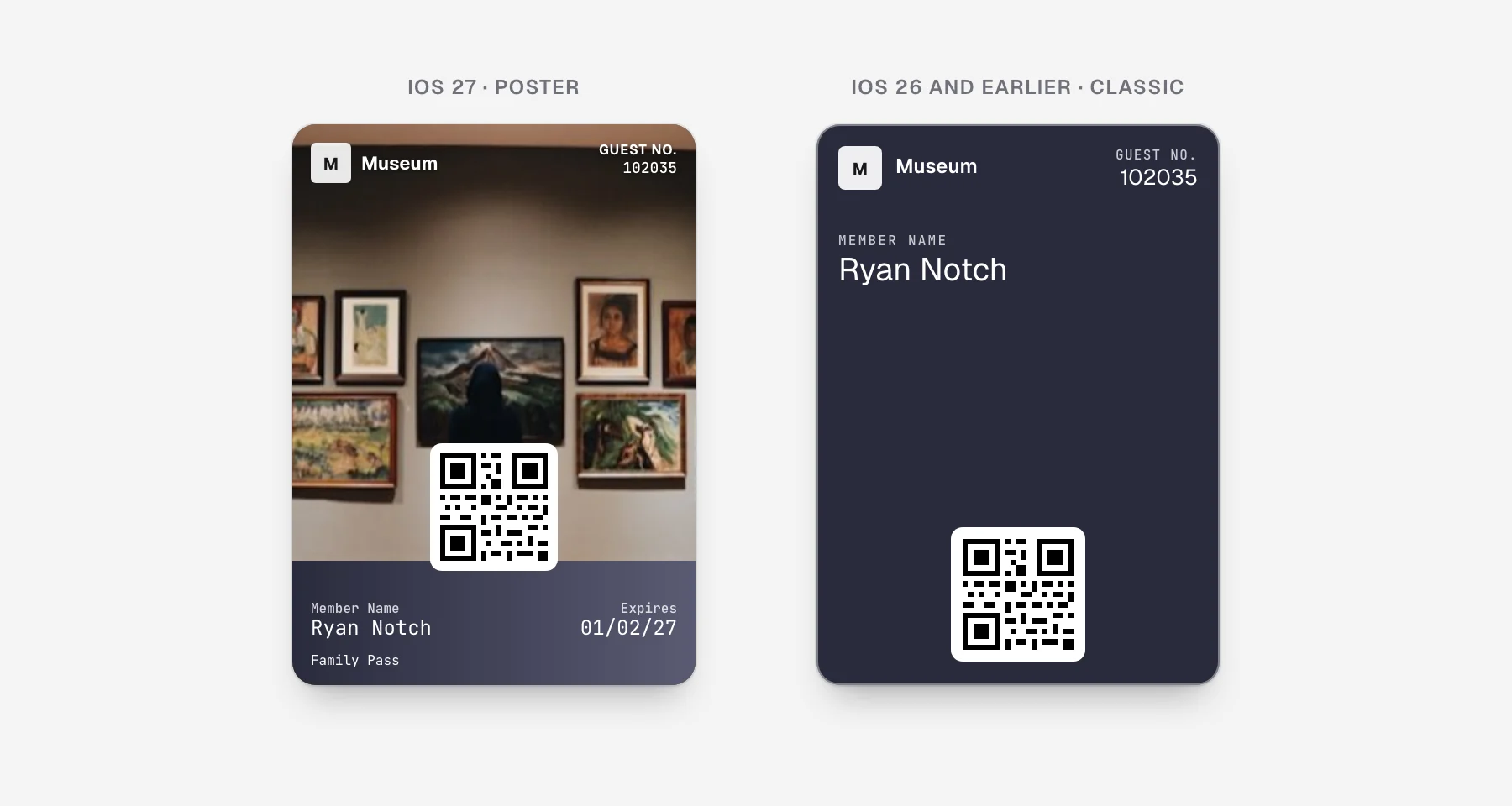
The images follow the same idea. The file carries background.png for the poster and, because the poster header reads its own logo slot, a copy of the logo as primaryLogo.png, taken from the wide logo when there is one. The classic layout keeps reading logo.png, so nothing changes for the older phone. Text on the poster is white with light labels regardless of the color you set, since it always sits on the darkened artwork; the color still fills the area behind the strip and shapes the classic fallback.
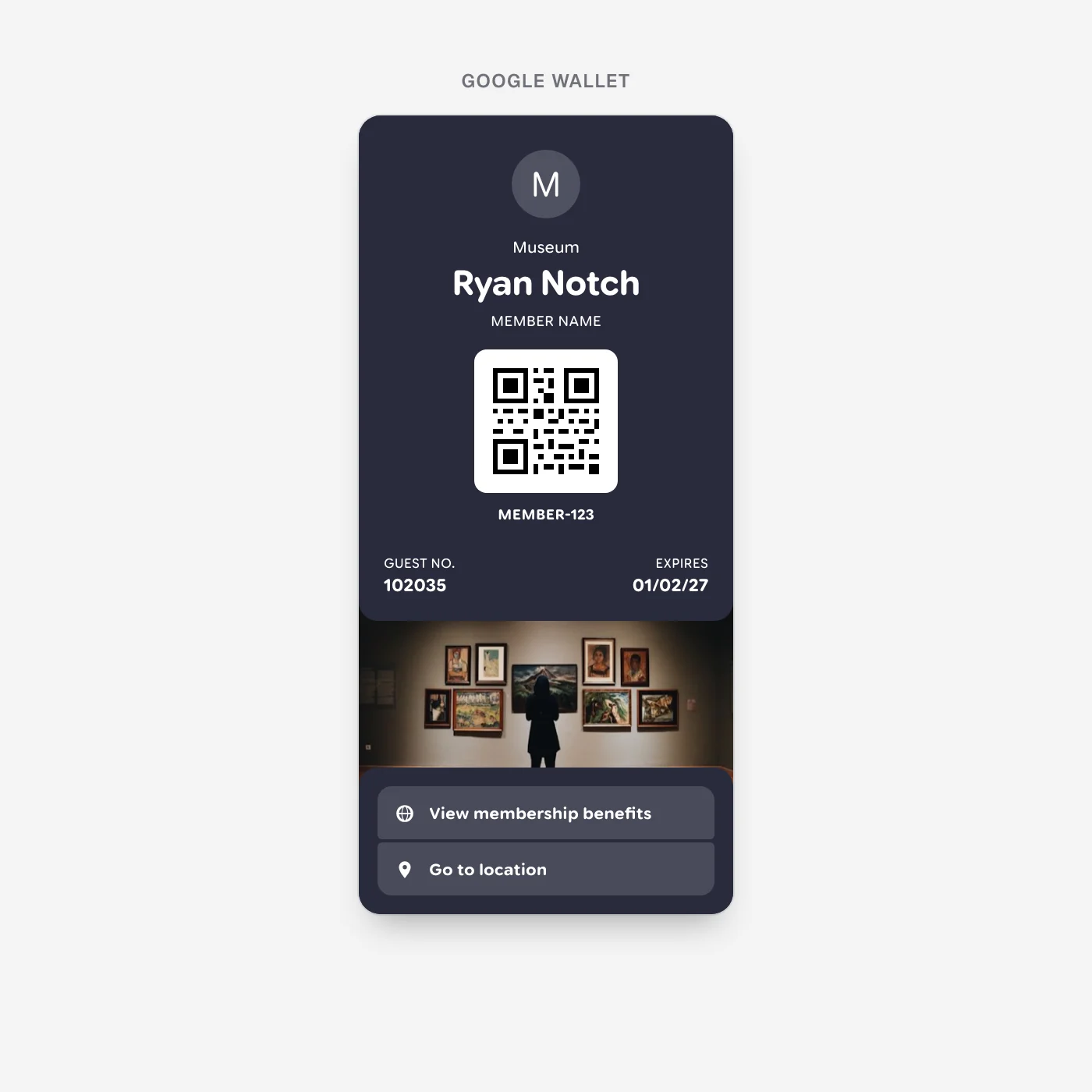
Google Wallet has no poster layout, and its redesign this summer moved every pass to a full-screen card with a large image band under the fields. The background becomes that band when the pass has no strip image, and the footer values go to the pass details. The artwork you supply for the poster is the artwork the Google pass shows, without a second upload.
Over the API
backgroundURL switches a pass to the poster, and footerFields carries the strip line:
{
  "logoText": "Museum",
  "logoURL": "https://example.com/museum-logo.png",
  "backgroundURL": "https://example.com/museum-poster.png",
  "headerFields": [{ "label": "Guest No.", "value": "102035" }],
  "primaryFields": [
    { "label": "Member Name", "value": "Ryan Notch" },
    { "label": "Expires", "value": "01/02/27" }
  ],
  "footerFields": [{ "value": "Family Pass" }],
  "barcodeValue": "102035",
  "barcodeFormat": "QR"
}
The preview in the pass editor
The editor draws both layouts the way the phones do, measured from a device rather than from the specification. The Apple preview shows the poster face: the image on the top three quarters, a strip below in colors sampled from the artwork’s bottom edge, the barcode box biting into the strip, monospace labels, and the logo text truncated where Wallet truncates it. Featured actions appear as tiles under the pass with Apple’s icon colors and wording. Phones before iOS 27 show the classic card, and the editor says so under the preview.
The Google preview follows the redesigned Wallet: logo and title centered, the big header, the barcode above the field rows, the artwork cropped to Google’s band, and the actions as grouped rows in Google’s typeface. Both previews sit in a slim phone frame, with the Apple and Google switch in the frame’s band.
Availability
Featured actions, the poster background, and the footer field are live for Pro accounts, in the editor and on the API. Poster passes and tiles render on iOS 27, which Apple ships this month; every earlier iOS shows the classic layout from the same pass. The field reference is in the docs, and the request shape is in llms.txt for anyone building with an agent.
To start, open the pass editor from your dashboard, or get an API key at walletwallet.dev.
Build your first wallet pass
Turn one JSON request into a pass that installs in Apple Wallet and Google Wallet, with live updates that reach both.