Wallet Passes for Webinars: Raise Attendance with Apple and Google Wallet
About half of webinar registrants show up. Put a pass in each registrant's Apple or Google Wallet with the join link and send reminders to the lock screen. A reminder schedule, example messages, and setup for Zoom, WebinarJam, Luma, and Eventbrite.
About half of the people who register for a webinar attend it live. Livestorm’s 2026 Webinar Benchmark Report puts the average show-up rate at 47.7% across 33,786 sessions. The other half registered, meant to come, and did not.
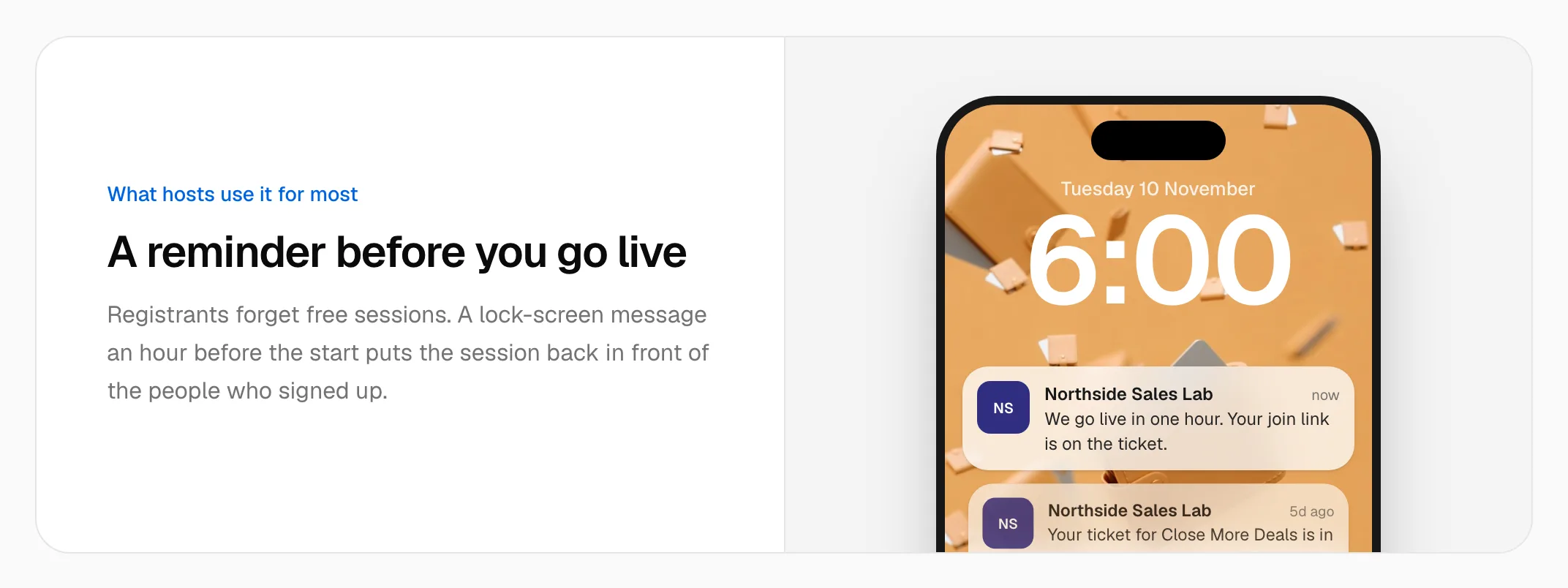
A Wallet pass gives each registrant one thing to keep on their phone: the session title, the start time, and the join link, next to their boarding passes and concert tickets. You can update it and send a lock-screen notification to it after it is saved, which an email cannot do.
This guide covers why registrants miss a webinar, what our own data shows, a reminder schedule with example messages, how a pass compares with email, SMS, and a calendar invite, and how to set one up with Zoom, WebinarJam, Luma, Eventbrite, or any tool that has a join URL. For in-person events, see digital event tickets.
Average webinar attendance, and where registrants drop off
| Benchmark | Figure | Source |
|---|---|---|
| Average live show-up rate | 47.7% of registrants | Livestorm 2026 report, 33,786 sessions |
| Best day for show-up rate | Tuesday, 51.7% | Livestorm 2026 report |
| Registrations in the final seven days | 49.7% | Livestorm 2026 report |
| Registrations on the day itself | 15% | Livestorm 2026 report |
Two facts follow from the table. Half of your registrants sign up more than a week ahead, which is long enough to forget. The other half sign up in the last week, and 15% on the day, so a reminder scheduled a week out never reaches them. A reminder has to go to whoever is registered at the moment it is sent.
Registrants rarely decide to skip. They forget, or they cannot find the link at the moment it starts:
- The join link is in an email from days or weeks ago.
- Reminder emails compete with everything else in the inbox, and some get filtered.
- The calendar invite has the wrong time zone, or it was never accepted.
- The session moved, and the update went out as one more email.
- The registrant is on their phone when it starts and the link is on their laptop.
Each of these is a findability problem. A Wallet pass sits in an app the registrant already opens, and it shows the current time and link even if the session changed.
What we see in WalletWallet data
We looked at every pass on WalletWallet whose text mentions a webinar, a workshop, a masterclass, a live training, a livestream, or a Zoom link: 2,141 passes from 36 accounts, issued between June and mid-November 2026.
| Finding | Figure |
|---|---|
| Accounts issuing their first online-event pass | 3 in August, 8 in September, 15 in October |
| Passes added to a wallet | 39% overall, and 64% for the best large account |
| Wallet split among installed passes | 72% Apple Wallet, 30% Google Wallet |
| Passes updated on a later day than they were issued | 63% |
| Passes that carry an expiry date | 92% |
What the numbers say:
- The use case is growing. Five times as many accounts started in October as in August.
- Install rates vary a lot between hosts. The spread between accounts runs from under 5% to 64%. The data does not say why. Our advice is to put the Add to Wallet link on the confirmation page and in the confirmation email, where the registrant is still paying attention.
- Plan for Android. Three in ten installed passes are on Google Wallet, so a link that only opens Apple Wallet loses a third of the audience. A few people add the pass to both.
- Hosts update the pass. Nearly two thirds of passes change after they are issued: a status, a new time, a reminder, or the replay.
- Almost every pass expires. Hosts set the pass to clear itself after the last session.
The sample is small and the accounts differ in size, so read these as directions and not as benchmarks. Counts are from 13 November 2026.
A webinar reminder schedule, with example messages
Livestorm recommends a confirmation, a reminder 24 hours before, one an hour before, and a “starting now” message. The same schedule works on a Wallet pass, where each message appears on the lock screen instead of in the inbox.
| When | What to send | Example lock-screen message |
|---|---|---|
| On registration | The pass itself, from the confirmation page and email | Your ticket for Close More Deals is in your wallet. |
| 24 hours before | A reminder with the time and time zone | Tomorrow at 7:00 PM ET: Close More Deals, live. |
| 1 hour before | The reminder that brings people back | We go live in one hour. Your join link is on the ticket. |
| At the start | A short “starting now” | We are live. Tap the pass to join. |
| After the session | The replay | Missed it? The replay is on your pass until Friday. |
Keep each message short. A Campaign carries up to 60 characters, which is what fits on a lock screen in one glance. Schedule the 24-hour and one-hour messages when you set the webinar up, and send to the passes that exist at send time, so late registrants are included.
Google Wallet delivers up to three notifications per pass in 24 hours, and later updates still arrive without a banner. A schedule of one message the day before and two on the day stays inside that.
The pass notifications guide covers how Apple and Google decide when to show the banner, and Campaigns covers sending one message to every registrant from the dashboard.
Email, SMS, calendar invite, and Wallet pass compared
| Email reminder | SMS reminder | Calendar invite | Wallet pass | |
|---|---|---|---|---|
| Where it appears | Inbox, sometimes Promotions or spam | Messages | Calendar app, if accepted | Lock screen and the Wallet app |
| Needs from the registrant | An email address | A phone number and consent | Accepting the invite | One tap on Add to Wallet |
| Carries the join link | Yes, if they find the email | Yes | Yes | Yes, on the pass |
| Updates when the time changes | A second email | A second text | Only if the invite updates | The pass they hold changes |
| Works after the session | A follow-up email | A follow-up text | No | The same pass carries the replay |
Use the pass alongside the others. Email still delivers the pass link, and the calendar invite still blocks the time. The pass is the one that can be changed after it is delivered.
What to put on a webinar pass
| Field | Example | Where |
|---|---|---|
| Brand | Your logo and color | Header |
| Attendee | Priya Shah | Primary field |
| Start time | 4:00 PM ET | Secondary field, with a changeMessage |
| Date | Tue, Oct 13 | Secondary field, with a changeMessage |
| Status | Reminder scheduled, then Live now | Header field |
| Session title | Pricing your SaaS in 2026 | Back field |
| Join link | Your Zoom, WebinarJam, or Meet URL | Back field and QR code |
| Watch before | A short primer video | Back field |
| Replay | Added after the session | Back field |
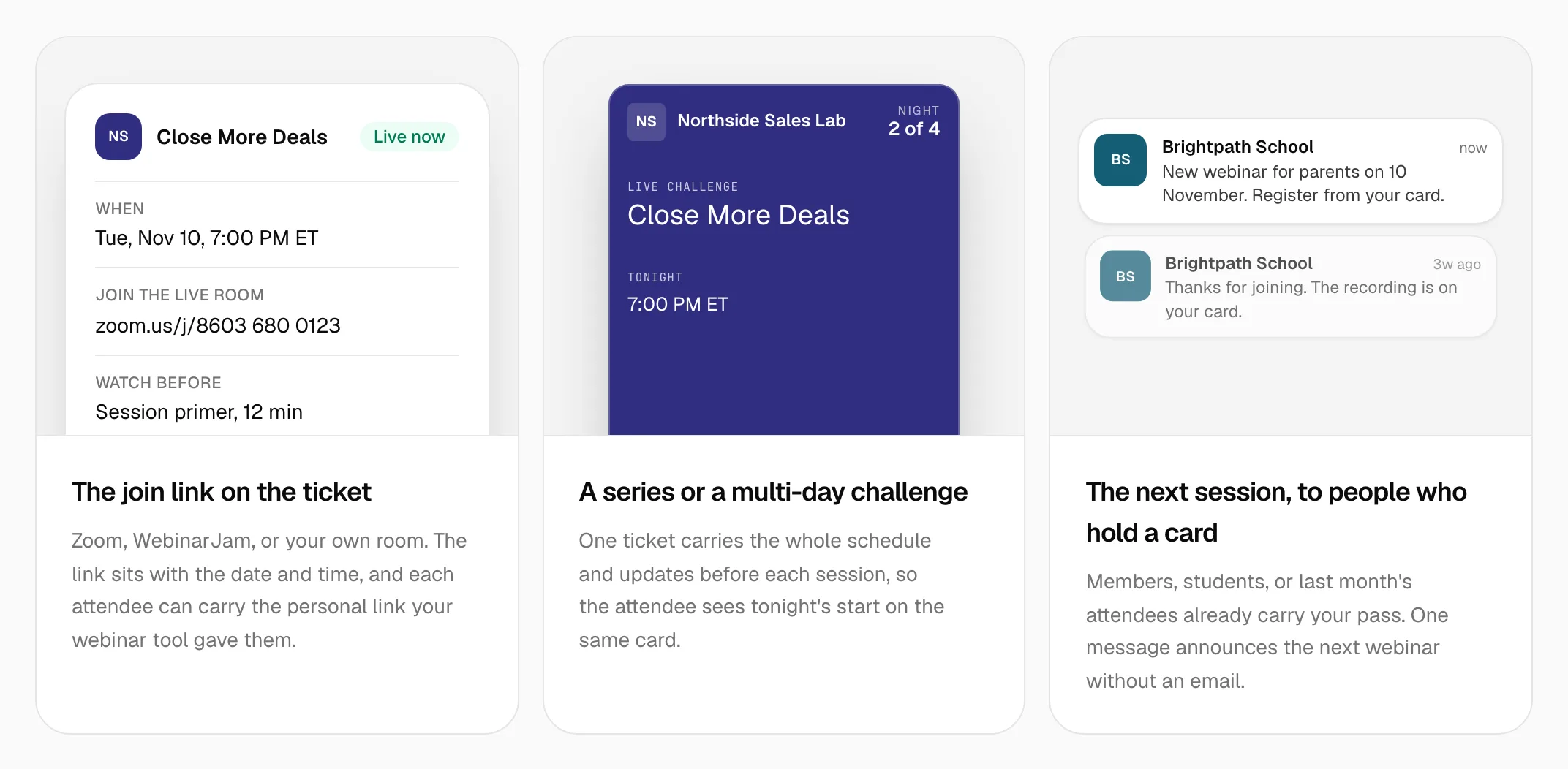
Hosts on WalletWallet use a few patterns worth copying:
- A Status field. One host running weekly masterclasses changes it from “Reminder scheduled” to “Live now” when the room opens, with the join link under it.
- Every time zone. One free training lists the start in Eastern, Central, Mountain, and Pacific. Wallet shows the text exactly as you write it, so “4:00 PM ET” reads correctly everywhere and a bare “4:00 PM” does not.
- An expiry. A four-night live challenge sets each pass to expire the morning after the last night, so 1,654 passes clear themselves out of the wallet.
- One pass for the series. The same challenge puts all four nights on one pass and updates it before each session.
On iOS 27 and later, a pass can also show up to two featured action tiles under the pass face, such as a schedule link for a multi-session event.
Set it up with Zoom, WebinarJam, Luma, or Eventbrite
A pass works with any platform that gives you a join URL and a list of registrants. The platform runs the session and the pass carries the link.
| Platform | What goes on the pass | How registrants reach WalletWallet today |
|---|---|---|
| Zoom Webinars | The registrant’s join link | Export the registration report as a CSV, or call the API from a Zapier or n8n flow on each new registrant |
| WebinarJam | The live room link, then the replay | Export registrants as a CSV, or send each new registrant through Zapier |
| Luma | The event page or join link | Export the guest list as a CSV |
| Eventbrite | The online event page link and the order’s ticket ID | Export the attendee report as a CSV |
| GoToWebinar, Livestorm, Google Meet, Microsoft Teams | The join URL | A CSV export, or one HTTP request per registrant |
Native connections for Zoom, Luma, Eventbrite, and WebinarJam are on the roadmap. Until then the CSV and the API cover the same ground.
Where the platform gives each registrant a personal join link, put that link on their own pass, as a column in the CSV or a field in the request.
How to create a webinar pass
Create one pass per registrant. The dashboard covers it without code, and the API does the same from your own system.
From the dashboard
- Design the pass in the visual editor.
- Export registrants from your webinar platform as a CSV and upload it in Batch import. Each column becomes a field, and you get back one install link per registrant.
- Paste the install links into your reminder email or your platform’s confirmation template with a mail merge.
- Send reminders and schedule changes to every pass at once with Campaigns, now or at a time you pick.
For open registration, a signup form issues the pass when someone fills it in. To issue passes from your own registration form, connect it through Zapier, n8n, or a plain HTTP request.
With the API
Send one request per registrant, from your registration form or a script over an exported list.
curl -X POST https://api.walletwallet.dev/api/passes \
  -H "Authorization: Bearer ww_live_<your_key>" \
  -H "Content-Type: application/json" \
  -d '{
    "organizationName": "Brightline Live",
    "logoText": "Brightline Live",
    "headerFields": [{ "label": "WEBINAR", "value": "Live" }],
    "primaryFields": [{ "label": "ATTENDEE", "value": "Priya Shah" }],
    "secondaryFields": [
      { "label": "STARTS", "value": "4:00 PM ET", "changeMessage": "Now starting at %@" },
      { "label": "DATE", "value": "Tue, Oct 13", "changeMessage": "New date: %@" }
    ],
    "backFields": [
      { "label": "Session", "value": "Pricing your SaaS in 2026: a live teardown" },
      { "label": "Join link", "value": "https://example.com/brightline/join" }
    ],
    "barcodeValue": "https://example.com/brightline/join",
    "barcodeFormat": "QR",
    "barcodeAltText": "Scan to join on this device"
  }'
The response returns a serialNumber and a share link. Send the share link in your
registration confirmation and on the thank-you page. You can
open the sample pass
on your phone to see it.
To send a reminder, PUT the same pass with every field plus a notification:
{
  "notification": "We start in 15 minutes. Tap the pass to join."
}
PUT replaces the whole pass, so send the full body with the message added. To
move the session, change the STARTS value in the same way and the
changeMessage shows the new time on the lock screen. To clear the pass after
the session, set expirationDate to the end of the last one.
Coming soon: the pass on the lock screen at the start time
A pass will be able to carry the start time as a lock-screen date. Apple Wallet then shows the pass at the bottom of the lock screen as the session begins, one tap from the join link, and Google Wallet notifies the holder ahead of it. It works like a calendar invite nobody can skip, and you send nothing.
FAQ
What is a good webinar attendance rate? Around half of registrants. Livestorm’s 2026 report puts the average at 47.7%, with Tuesday the highest day at 51.7%.
How many reminders should I send? Three or four: on registration, the day before, an hour before, and at the start. On a Wallet pass each one appears on the lock screen.
Do registrants need an app? No. Apple Wallet and Google Wallet are built into iPhone and Android phones. The registrant taps Add to Wallet on the pass page.
Does it replace the calendar invite? Use both. The calendar invite blocks the time, and the Wallet pass keeps the link, the current time, and the reminders in one place that updates when the session changes.
Which webinar platforms does it work with? Any platform with a join URL, including Zoom, WebinarJam, GoToWebinar, Livestorm, Luma, Eventbrite, Google Meet, Microsoft Teams, and your own streaming page. The pass carries the link, and the platform runs the session.
Can I give each registrant a unique join link? Yes. Each pass is created separately, so put each registrant’s personal link in their own pass.
What happens to the pass after the webinar? Swap the join link for the replay and say so with a notification, roll the pass forward to the next session, or let it expire on the date you set.
To try it, create a free account and build a webinar pass in the editor, or read the API docs.
Build, distribute, and notify in under five minutes
Design your passes, hand them out, and send push notifications to Apple Wallet and Google Wallet. By API, from the dashboard, or through an AI assistant.