Campaigns: Send Notifications to Your Passes
Campaigns sends lock-screen notifications to the passes you choose, from the WalletWallet dashboard. What it is for, the three steps, and what lands on the phone.
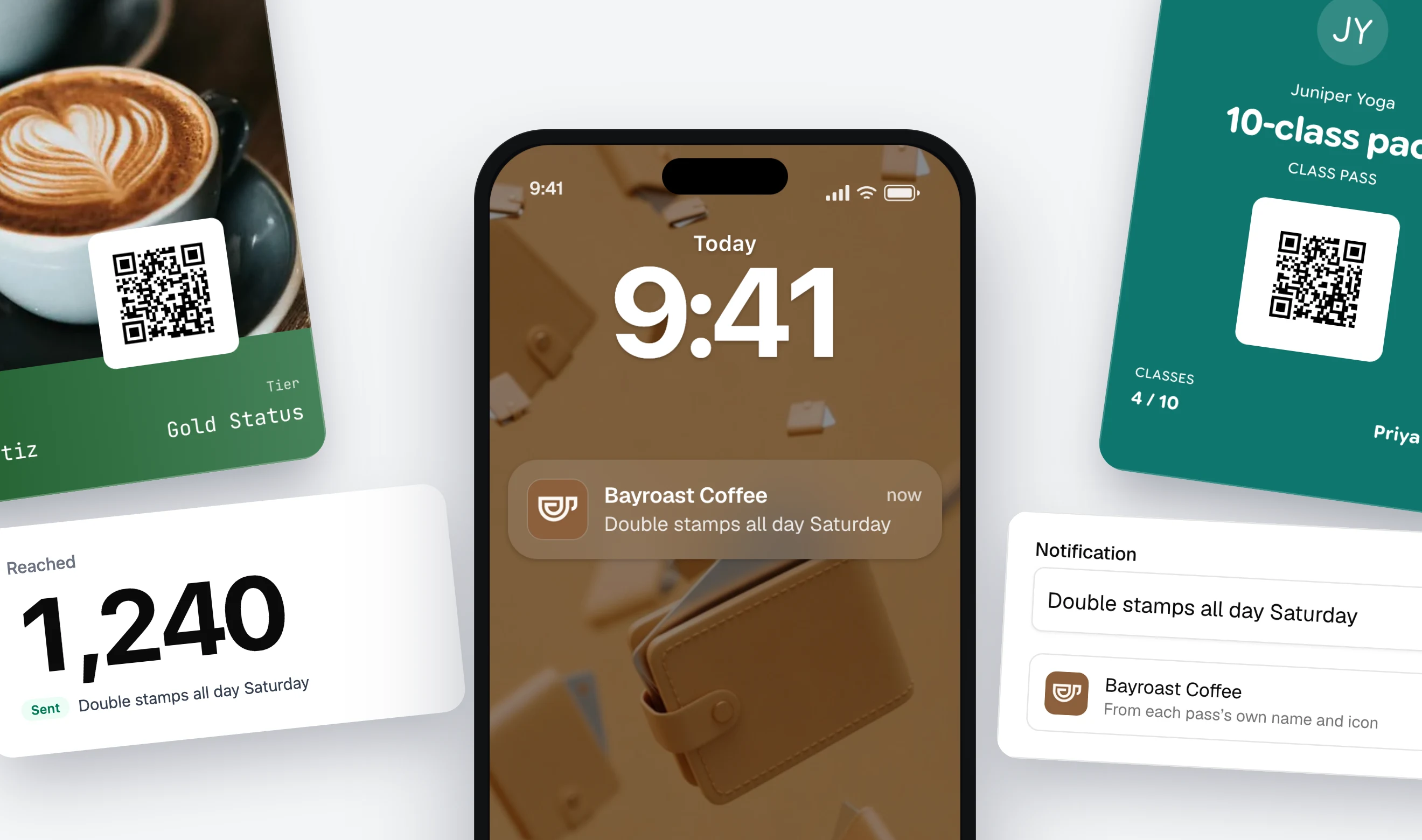
Campaigns sends notifications to your passes. Until now a message went out one pass at a time, from the Pass Manager or with one PUT per pass over the API. A campaign is a message to a whole audience, from the dashboard, with a report of who got it. It is live under Campaigns, in beta, included with Pro.
What it is for
A pass that is already on a phone is a channel you own. Campaigns is how you use it for more than one person at a time:
- A loyalty card: double stamps on a slow Saturday, a new drink on the menu, a reward that expires at the end of the month.
- A membership: renewal opens next week, the gym closes early on Friday, a members-only sale.
- An event ticket: doors open at seven, the venue changed.
The audience is whatever you can find in your passes: every Gold member, everyone on Friday’s guest list, the spring batch, or a CSV of serials from your own system.
Step 1: write the message
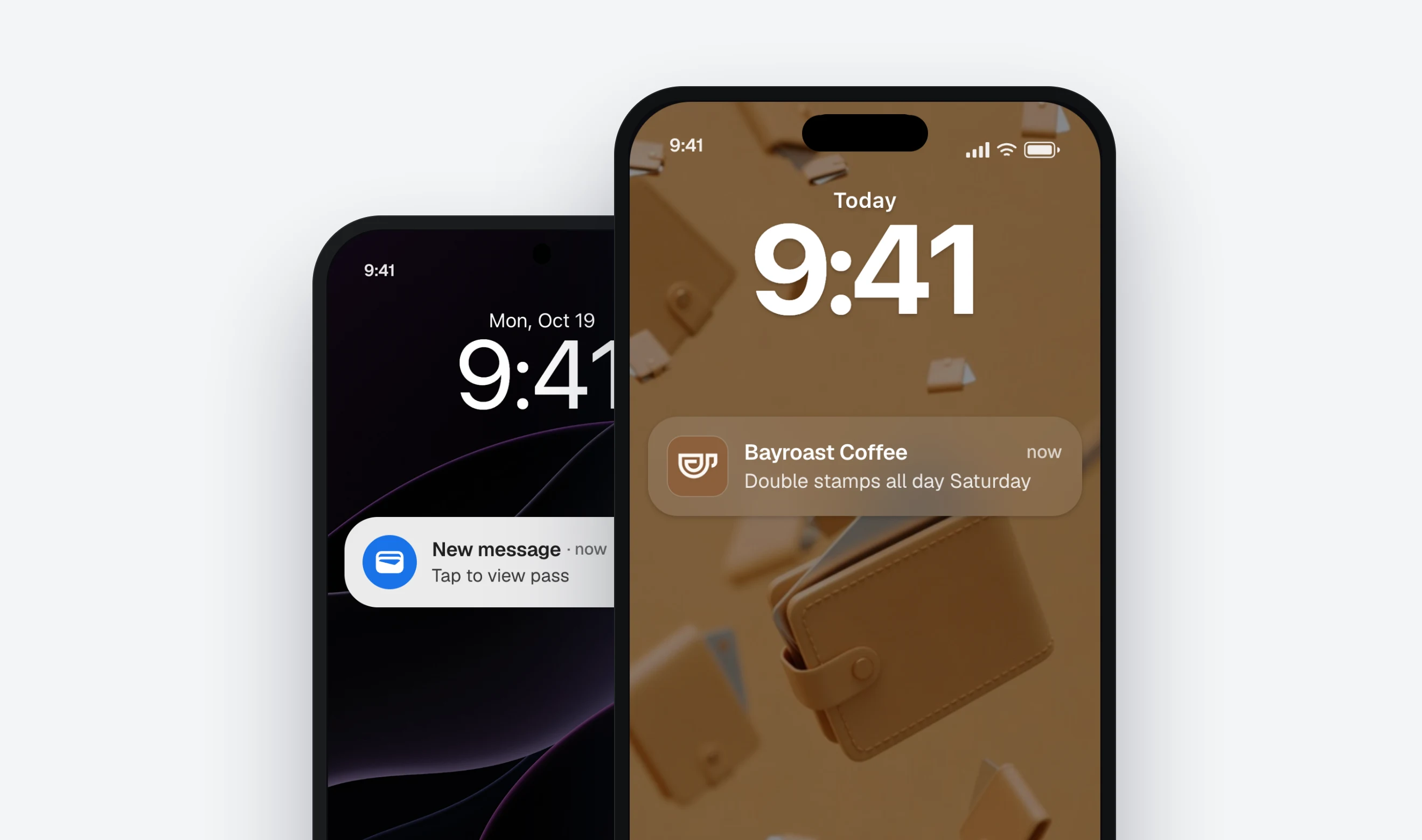
Up to 60 characters, which is what an iPhone banner shows in full. The phone on the right draws the banner the way Apple Wallet will, under the name and icon of each pass.
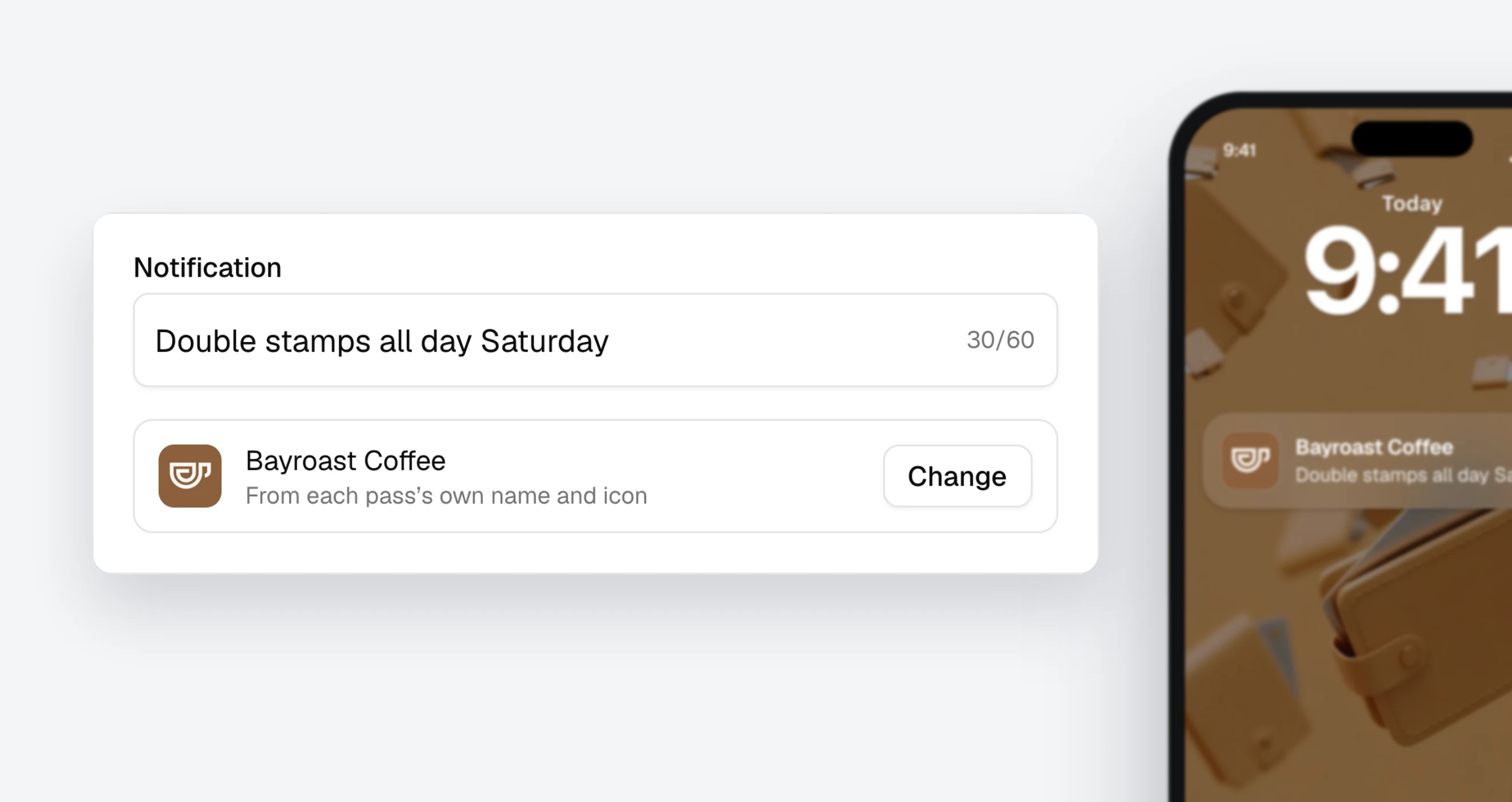
Press Change to send the campaign under a different name and icon than the passes carry, for a partner offer or a venue. The passes themselves do not change.
Step 2: pick the passes
The same search as the Pass Manager: a name, a ticket, an email, a serial, or a date range. Add every match with one button or tick passes one by one, and mix searches until the selection is right.
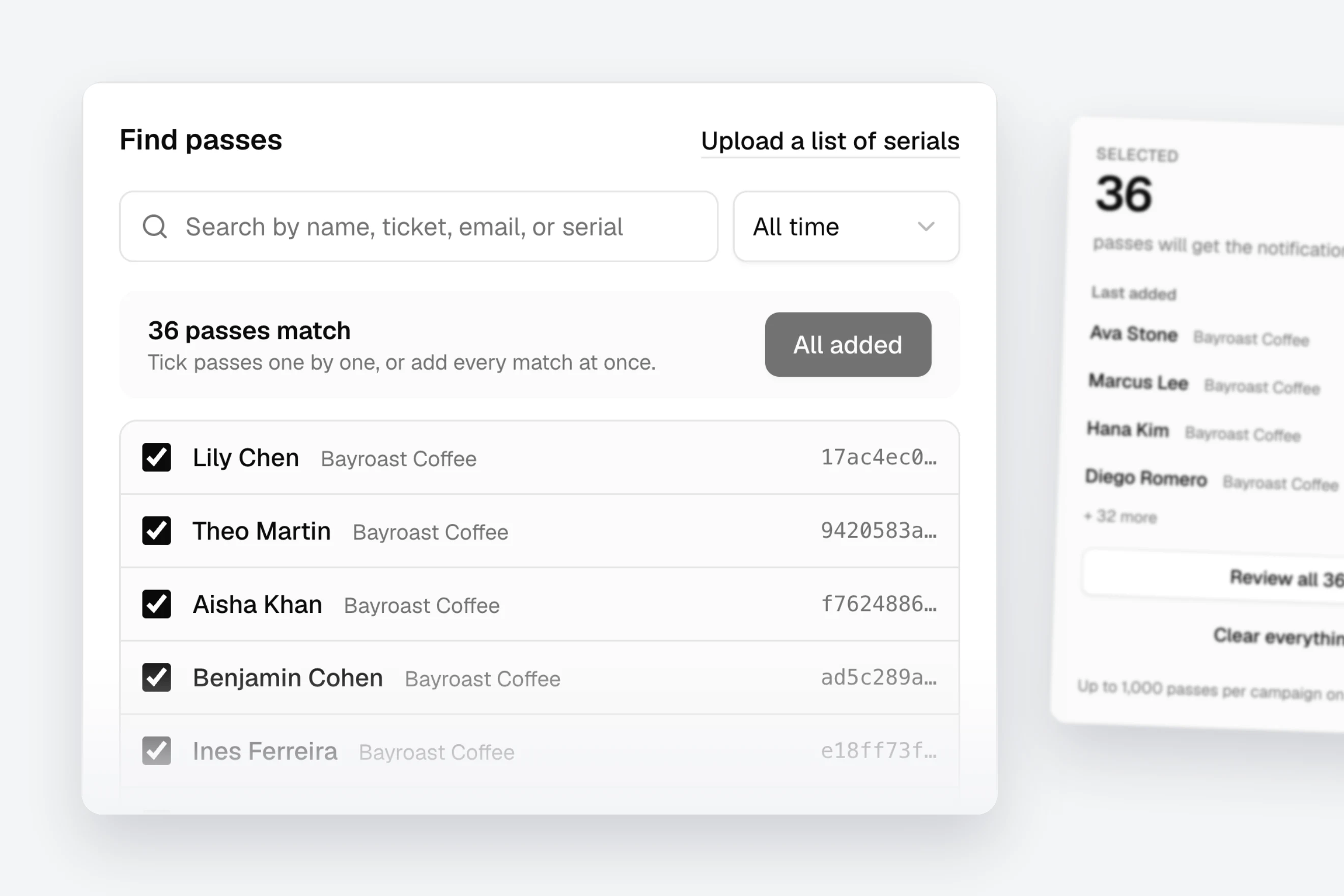
If the list already exists, upload it. Any CSV with a serial column works, including a Pass Manager export, and every serial is checked against your passes before it is added.
Step 3: review and send
The review shows how many passes get the message, who it comes from, and how many updates it uses from your monthly allowance. Each pass reached counts as one update, the same as a PUT; a pass that already shows the text is skipped for free.
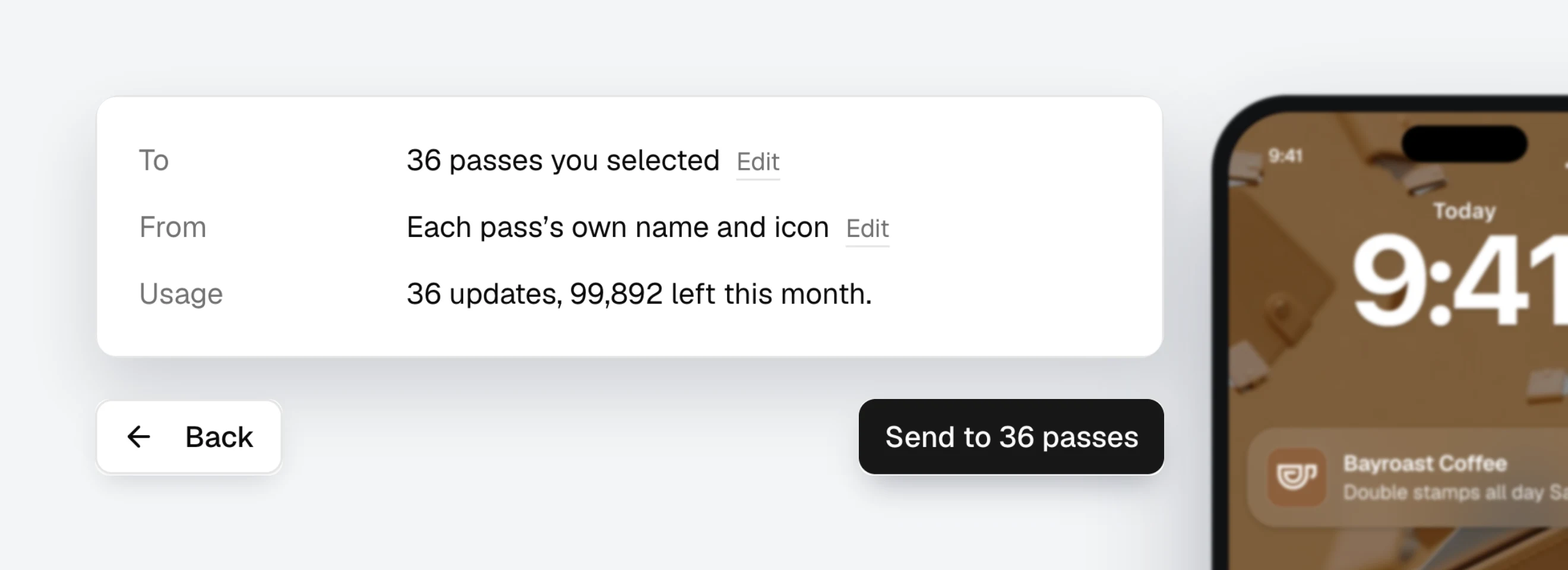
Sending runs in the background, and a campaign that is still sending can be cancelled from its page.
Who got it
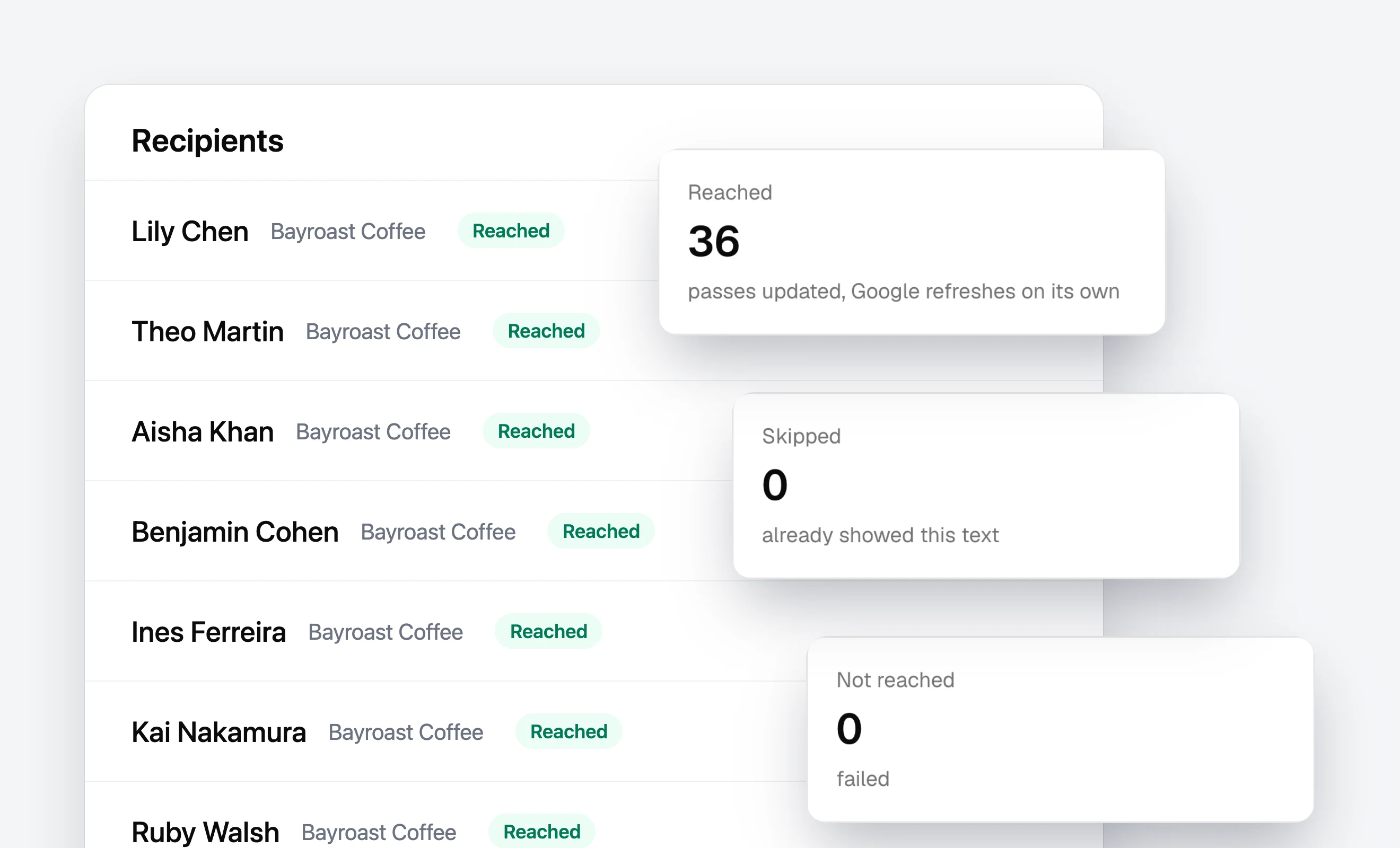
Every campaign has a page with the reached, skipped, and not reached counts, each recipient with its outcome, and a CSV download. On Apple the reached count comes with the number of devices that took the push. Google Wallet refreshes the pass on its own schedule, so it reports reached without a device count.
What the phone shows
On an iPhone the message is a lock-screen banner with the pass icon and the organization name, and tapping it opens the pass. Google Wallet does not show custom text on the lock screen: it sends a generic notification that the pass has new information, and your message sits in the pass details.
Over the API
A campaign uses the notification field every pass carries since October. From your own code you can do the same today with one PUT /api/passes/<serial> per pass, as in the notifications guide. A batch method that takes a list of serials and one message is coming to the API soon.
Open Campaigns to send the first one. The changelog lists everything else that shipped this month.
Build, distribute, and notify in under five minutes
Design your passes, hand them out, and send push notifications to Apple Wallet and Google Wallet. By API, from the dashboard, or through an AI assistant.